Translate PDFs Locally with Doco Translate and Ollama While Preserving Layout
Learn how to use Doco Translate with Ollama on Mac to translate PDFs locally, keep the original layout, and verify your local model connection in Settings.
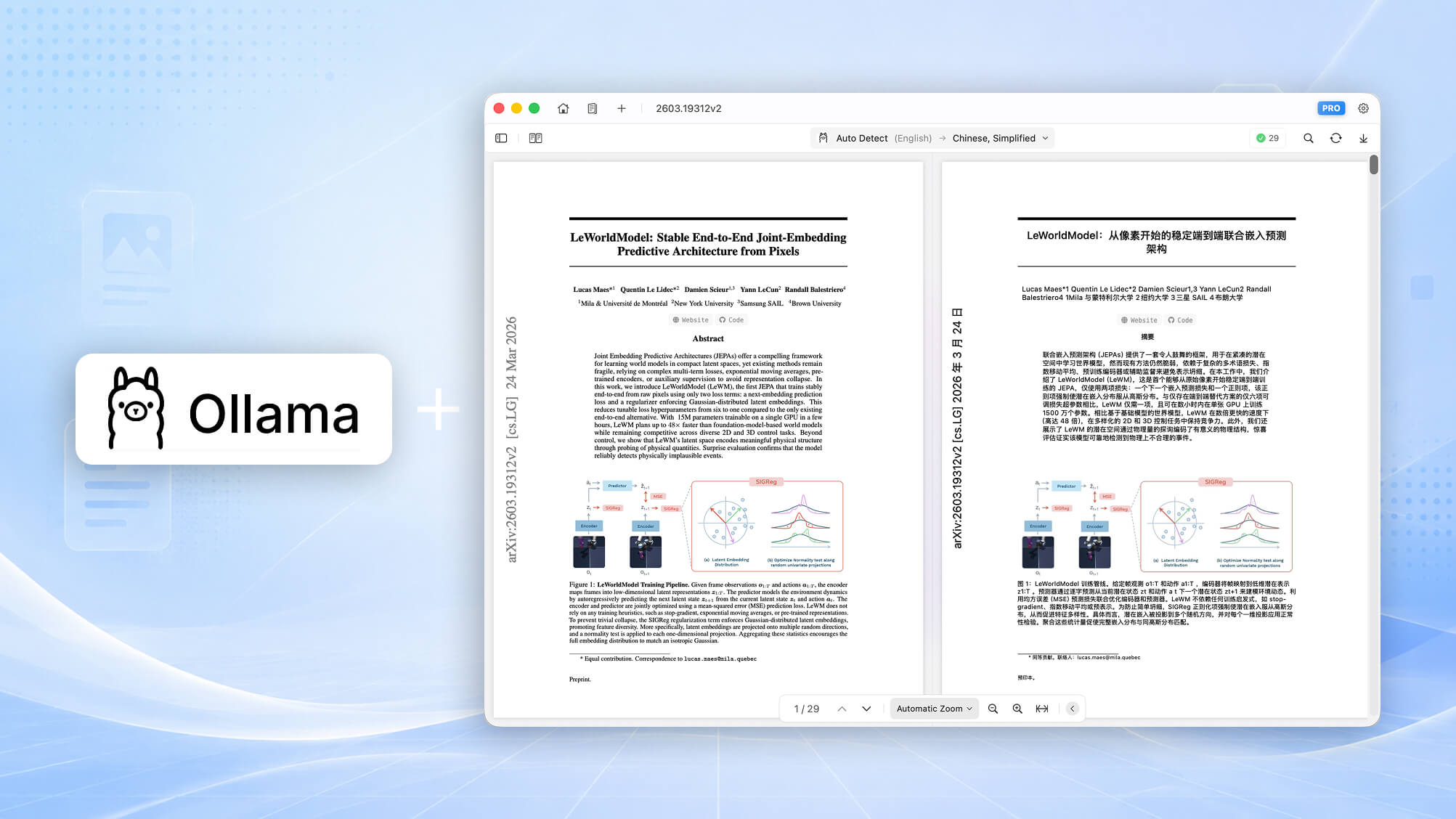
PDF translation sounds simple until the document has two-column pages, tables, footnotes, screenshots, or scanned text. Copying paragraphs into a chat window may work for a quick sentence, but it usually falls apart when you need the translated PDF to remain readable as a document.
That is where Doco Translate and Ollama make a practical local workflow. Doco Translate handles PDF parsing, bilingual review, layout preservation, OCR, and export. Ollama runs the language model on your own Mac, so the translation request can stay local instead of being sent to a cloud API.
If you are searching for a way to translate PDFs locally on Mac, translate PDFs with Ollama, or preserve PDF formatting after translation, this guide walks through the setup I would use first.
Why Use Ollama for Local PDF Translation?
Ollama is useful when you want more control over where your document text goes. Instead of relying on a hosted translation API, you can run an open-source model locally and connect it to Doco Translate as a translation service.
- Privacy — sensitive PDFs such as contracts, internal reports, research drafts, and client files can be processed without uploading the document to an online PDF translator.
- Model control — you can choose the model that works best on your Mac, then switch later if you want better quality or faster translation.
- No API key required — a typical local Ollama setup does not need an API key unless you have enabled authentication yourself.
- Better document workflow — Doco Translate keeps the PDF-specific work inside the app instead of forcing you to manually copy, paste, and rebuild the document.

What Doco Translate Adds on Top of Ollama
Ollama runs the model, but it is not a PDF translation app by itself. Doco Translate fills that gap by preparing the document, sending translation tasks to the selected service, and placing the translated text back into the document view.
In practice, that means you can work with long PDFs more comfortably: import a document, translate it with your local Ollama model, review the bilingual result, make edits when needed, and export the translated file. The important part is that Doco Translate is built around documents, not one-off text prompts.
Before You Start
You will need three things:
- Doco Translate for Mac. You can download Doco Translate from the Mac App Store.
- Ollama installed and running on your Mac.
- A local model already installed in Ollama, such as a Qwen, Llama, Mistral, or other model that fits your hardware.
For example, after installing Ollama, you might pull a model from Terminal:
ollama pull qwen3.5:2bThe exact model name depends on what you installed locally. Smaller models are usually faster and easier to run on laptops. Larger models may produce better wording, but they also need more memory and patience, especially on long PDFs.
Configure Ollama in Doco Translate
Once Ollama is running and the model is installed, open Doco Translate and add it as a local translation service.
1. Open the Ollama service settings
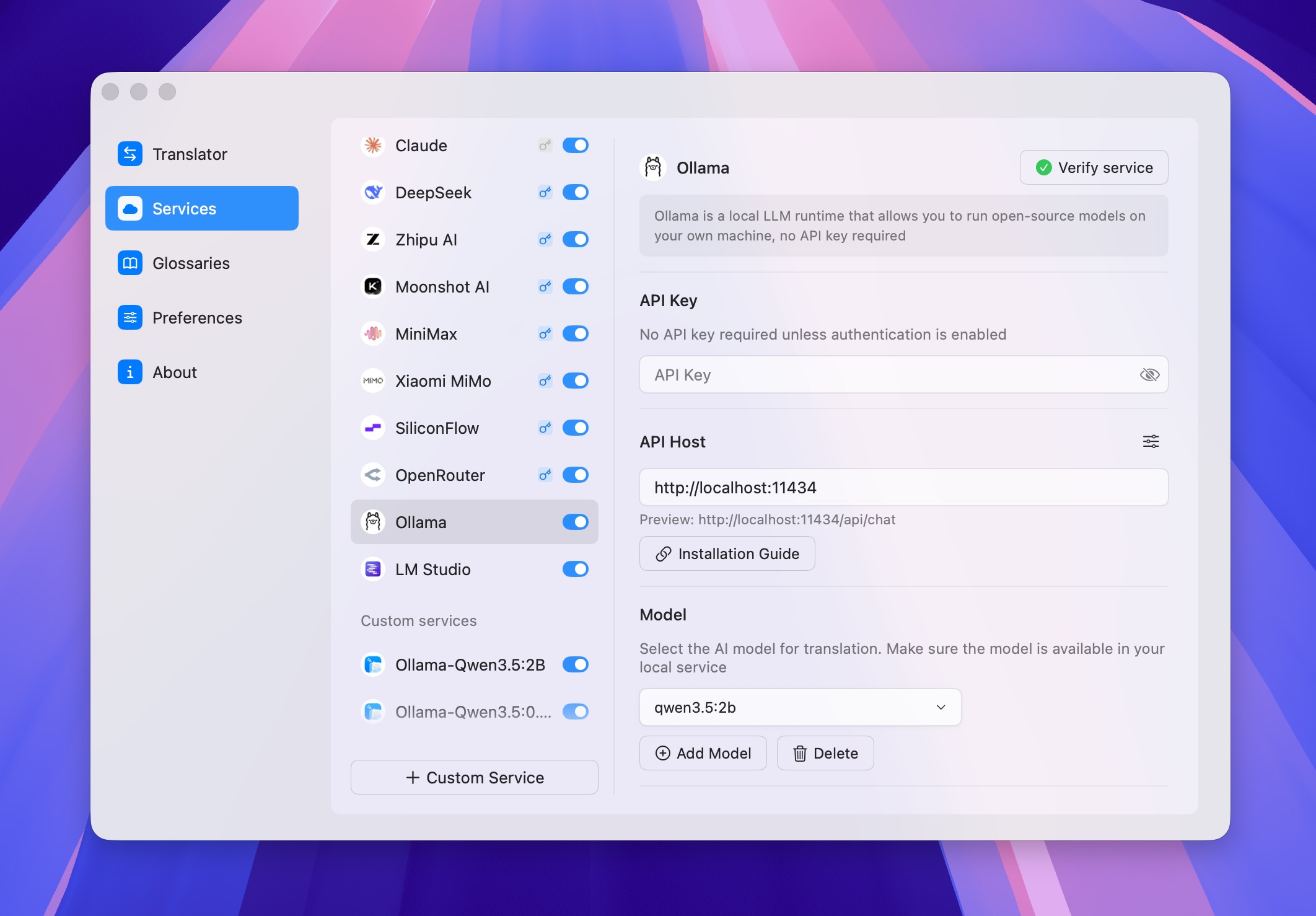
In Doco Translate, go to Settings → Services → Advanced Services → Ollama. This is where you configure the local Ollama endpoint and choose the model that Doco Translate should use for translation.
2. Check the API host
For a standard local Ollama installation, the API host is usually:
http://localhost:11434Doco Translate shows the generated chat endpoint preview below the host field, such as http://localhost:11434/api/chat. If you changed Ollama's host or run it on another machine in your network, use that address instead.
3. Add or select your local model
In the Model section, select the model you want to use for translation. If the model is not listed yet, click Add Model and enter the exact local model name installed in Ollama, for example qwen3.5:2b.
This part matters: the model name in Doco Translate should match the model available in your local Ollama service. If Ollama does not have that model installed, Doco Translate will not be able to use it for translation.
4. Verify the service
Click Verify service. A successful verification means Doco Translate can reach your local Ollama host and talk to the selected model. If verification fails, check that Ollama is running, the API host is correct, and the model name exists locally.
You normally do not need to fill in an API key for Ollama. Leave the API key field empty unless you have enabled authentication in your own Ollama setup.
Translate a PDF with the Local Ollama Model
After verification succeeds, the translation flow is straightforward.
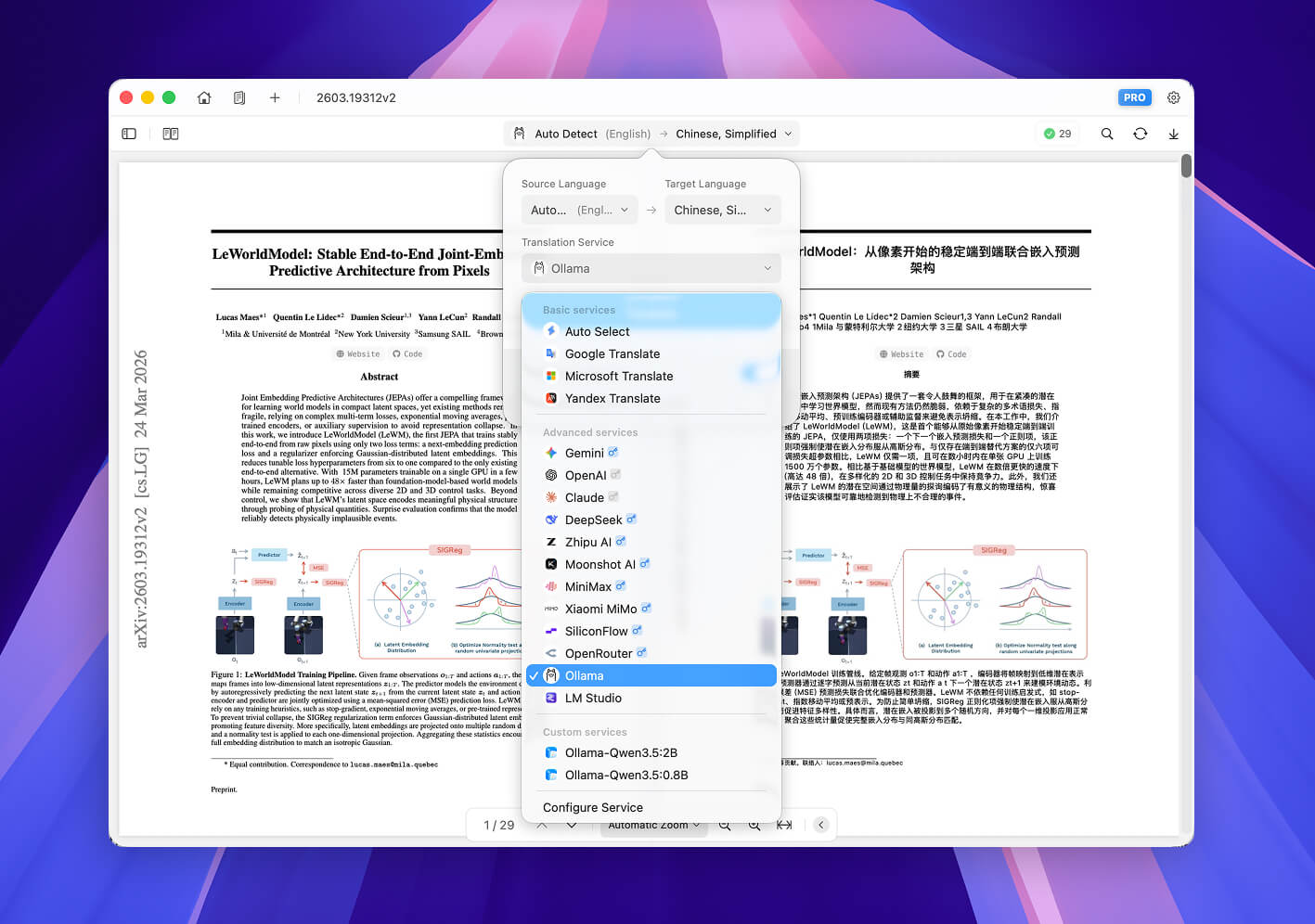
1. Choose the source and target languages
Automatic language detection is convenient, but for scanned PDFs, mixed-language files, and academic papers, manually choosing the source language often gives cleaner results. It gives OCR and text segmentation less room to guess.
2. Select your Ollama service
Choose the Ollama service you configured in Settings. If you added multiple local models, pick the one that fits the job. For a short document, you can afford a slower, stronger model. For a long manual or book chapter, a smaller model may be the more realistic choice.
3. Import the PDF
Open your PDF in Doco Translate and start translation. Doco Translate will analyze the page structure, process text regions, and send translation tasks to your local Ollama model. The goal is not only to translate the words, but also to keep the result aligned with the original document structure.
4. Review the bilingual result
For business, legal, medical, engineering, or academic PDFs, do not skip review. Check dates, numbers, units, names, headings, table labels, and domain terms. Local models are useful, but they are still models; the final pass is where you keep the document professional.
5. Export the translated document
Once the translation looks right, export the result. Instead of ending up with loose translated text, you get a translated document that stays much closer to the original PDF layout.
Tips for Better Local PDF Translation Quality
- Test with a few pages first. Before translating a 200-page PDF, try two or three pages and see whether the model handles the topic well.
- Use clear scans. OCR quality depends heavily on the original image. Blurry scans, skewed pages, heavy watermarks, and low contrast can hurt translation before the model even sees the text.
- Match the model to the document. Technical PDFs and legal documents need more consistent terminology than casual reading material.
- Watch memory usage. If your Mac slows down or Ollama becomes unstable, try a smaller model.
- Keep the original PDF. Treat the translated file as a working copy, especially for important documents.
Local PDF Translation vs Online PDF Translation
Online PDF translation tools are convenient for low-risk files. The tradeoff is that you usually upload the document and depend on the provider's processing pipeline.
A local workflow with Doco Translate and Ollama gives you more control. Your PDF stays on your Mac, the model runs locally, and Doco Translate focuses on the parts that general-purpose chat tools do not handle well: document layout, OCR, bilingual review, editing, and export.
For quick public content, an online translator may be enough. For sensitive files or repeated document work, local PDF translation is often the calmer, more durable setup.
FAQ
Can Doco Translate use a locally installed Ollama model?
Yes. Add the model in Settings → Services → Advanced Services → Ollama, make sure the API host points to your local Ollama service, select the model, and click Verify service.
Do I need an API key for Ollama?
Usually no. A normal local Ollama setup does not require an API key. Only enter one if your own Ollama environment has authentication enabled.
Will the translated PDF keep the original formatting?
Doco Translate is designed to preserve layout as much as possible, including document structure, images, tables, and reading flow. No PDF translator can promise perfect results for every file because translated text may be longer or shorter than the source, but it is a much better workflow than manually copying text into a generic translator.
Can this translate scanned PDFs?
Yes. Doco Translate supports OCR for scanned or image-based PDFs. For the best result, use clear scans and set the source language manually when the document is difficult to recognize.
What should I do if Verify service fails?
Check three things first: Ollama is running, the API host is correct, and the model name in Doco Translate exactly matches a model installed locally in Ollama. After fixing the issue, click Verify service again.
Final Thoughts
Using Doco Translate with Ollama is a solid way to translate PDFs locally on Mac without giving up layout preservation. Ollama gives you the local model runtime; Doco Translate gives you the document workflow around it.
For private PDFs, long technical documents, research papers, contracts, and scanned files, that combination is far more practical than copying text into a chat box and rebuilding the PDF by hand.
免费开始翻译
下载 Doco Translate,立即开始文档翻译之旅。
 需要 macOS 15 或更高版本