Translate PDFs Locally with Doco Translate and LM Studio While Preserving Layout
Set up LM Studio as a local translation backend for Doco Translate on Mac. Translate PDFs privately, preserve the original layout, and keep full control over your language model.

If you have ever tried to translate a PDF by copying text into a chat window, you already know how quickly things break down. Headers get mixed with body text, tables lose their structure, footnotes end up in the wrong place, and you spend more time reformatting than reading.
There is a better way to handle this on Mac — especially if you care about keeping the document on your own machine. LM Studio lets you run open-source language models through a desktop app with a built-in local API server. Pair it with Doco Translate, and you get a private, offline PDF translation pipeline that actually respects the original document layout.
This walkthrough covers the full setup: installing a model in LM Studio, connecting it to Doco Translate, and translating a real PDF from start to export.
What Makes LM Studio a Good Fit for PDF Translation
LM Studio is a free desktop application for macOS (and Windows/Linux) that lets you browse, download, and run large language models locally. Unlike some other local inference tools, LM Studio gives you a visual interface for everything — model search, download progress, chat testing, and server management. No terminal commands required.
Once a model is loaded, LM Studio exposes an OpenAI-compatible API on your machine. That is the key detail: Doco Translate can talk to this local endpoint the same way it would talk to a cloud API, except the data never leaves your Mac.
A few reasons this matters for document translation:
- No data leaves your machine — contracts, medical records, internal memos, financial reports, research manuscripts. If the content is sensitive, local processing removes the upload question entirely.
- You pick the model — a 3B parameter model for quick drafts, a 14B model for better quality on technical content. LM Studio makes it easy to swap models without reconfiguring anything in Doco Translate.
- No API key, no subscription — the local server runs for free. You do not need to sign up for an API plan or worry about token usage billing.
- Visual server management — you can see exactly which model is loaded, whether the server is running, and test it with a chat message before you even open Doco Translate.

What Doco Translate Does with the Local Model
LM Studio handles the model side — loading weights, running inference, serving the API. But it does not know anything about PDFs. It cannot parse page structure, handle OCR for scanned pages, or keep translated text aligned with the original layout.
That is exactly what Doco Translate is built for. It takes a PDF, breaks it down into translatable segments while preserving the document structure, sends those segments to whatever translation service you have configured (in this case, your local LM Studio server), and then assembles the result into a readable bilingual document. You can review, edit individual paragraphs, and export the final version.
The combination works because each tool focuses on what it does well. LM Studio runs the language model; Doco Translate manages the document workflow.
Getting Started: What You Need
- Doco Translate — download it free from the Mac App Store.
- LM Studio — download and install the macOS version from the official website.
- A language model — you will download one through LM Studio's built-in model browser. No separate download step needed.
Picking a model in LM Studio
Open LM Studio and head to the model search. You will find thousands of models from Hugging Face — multilingual models like Qwen, Gemma, Llama, and Mistral all work well for translation tasks.
For most Macs, a model in the 1B–8B parameter range is a good starting point. If your Mac has 16 GB of RAM or more, you can comfortably run 7B–8B models. With 8 GB of RAM, stick to smaller quantized models (3B or below) to avoid slowdowns.
Once the model finishes downloading, load it in LM Studio. You can test it with a quick chat message to make sure it responds correctly before connecting it to Doco Translate.
Starting the local API server
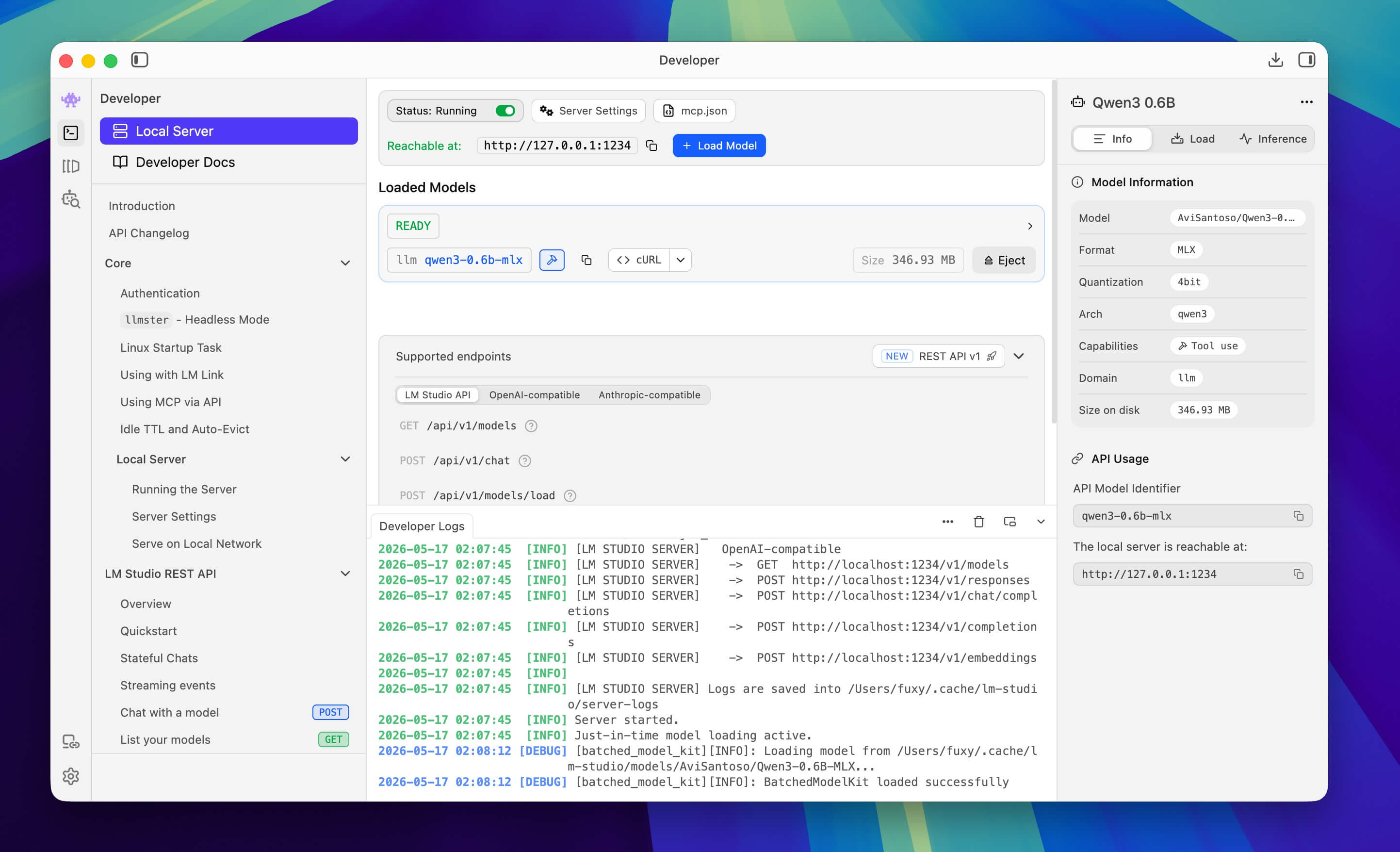
In LM Studio, navigate to the Developer tab (or Local Server in older versions) and start the server. By default, it listens on:
http://localhost:1234The server exposes OpenAI-compatible endpoints. Doco Translate uses the chat completions endpoint, which will be at http://localhost:1234/v1/chat/completions. Keep this server running while you translate.
Connecting LM Studio to Doco Translate
With the LM Studio server running, switch over to Doco Translate.
1. Open the LM Studio service settings
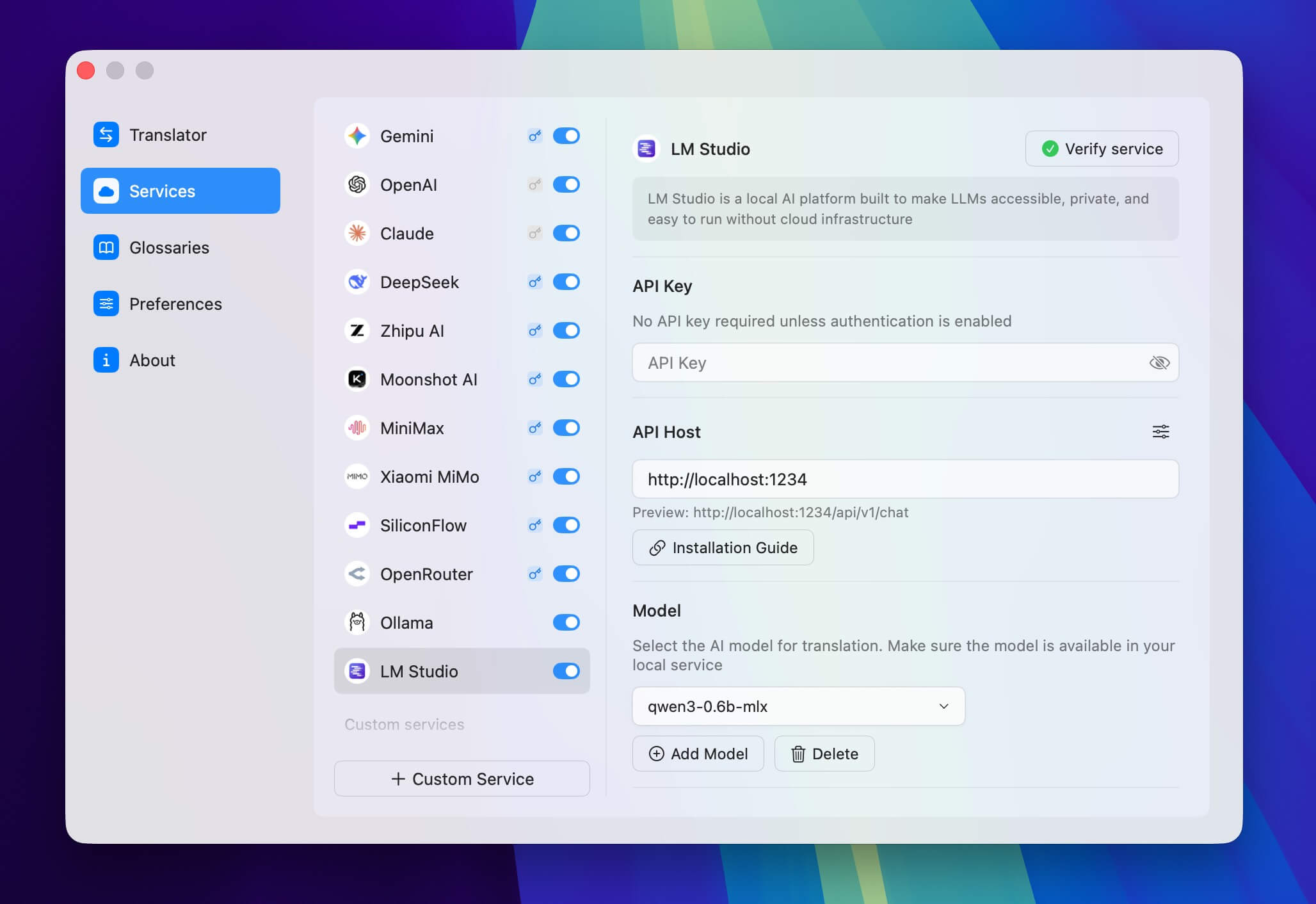
Go to Settings → Services → Advanced Services → LM Studio. This is where you tell Doco Translate how to reach your local LM Studio server.
2. Confirm the API host
The default API host for LM Studio is:
http://localhost:1234Doco Translate will show a preview of the full endpoint URL below the host field. If LM Studio and Doco Translate are running on the same Mac with default settings, you should not need to change anything here.
3. Select your model
In the Model section, choose the model currently loaded in LM Studio. If it does not appear in the list, click Add Model and enter the model identifier — this should match the model name shown in LM Studio's server panel.
A common mistake is entering a different model name than what LM Studio actually has loaded. Double-check the model name in LM Studio's server tab if Doco Translate cannot find it.
4. Verify the connection
Click Verify service. If everything is set up correctly, you will see a success confirmation. This means Doco Translate can reach your LM Studio server and communicate with the loaded model.
If verification fails, check these three things: (1) LM Studio's server is actually running, (2) the API host URL is correct, and (3) the model name matches what is loaded in LM Studio.
You do not need an API key for a standard LM Studio local server setup.
Translating a PDF Step by Step
Once the connection is verified, translating a PDF follows the same workflow as any other service in Doco Translate.
Choose your languages
Set the source and target languages. If your PDF is clearly in one language, auto-detection usually works fine. For scanned documents, mixed-language files, or PDFs with unusual fonts, setting the source language manually tends to produce better results because it gives OCR a stronger signal.
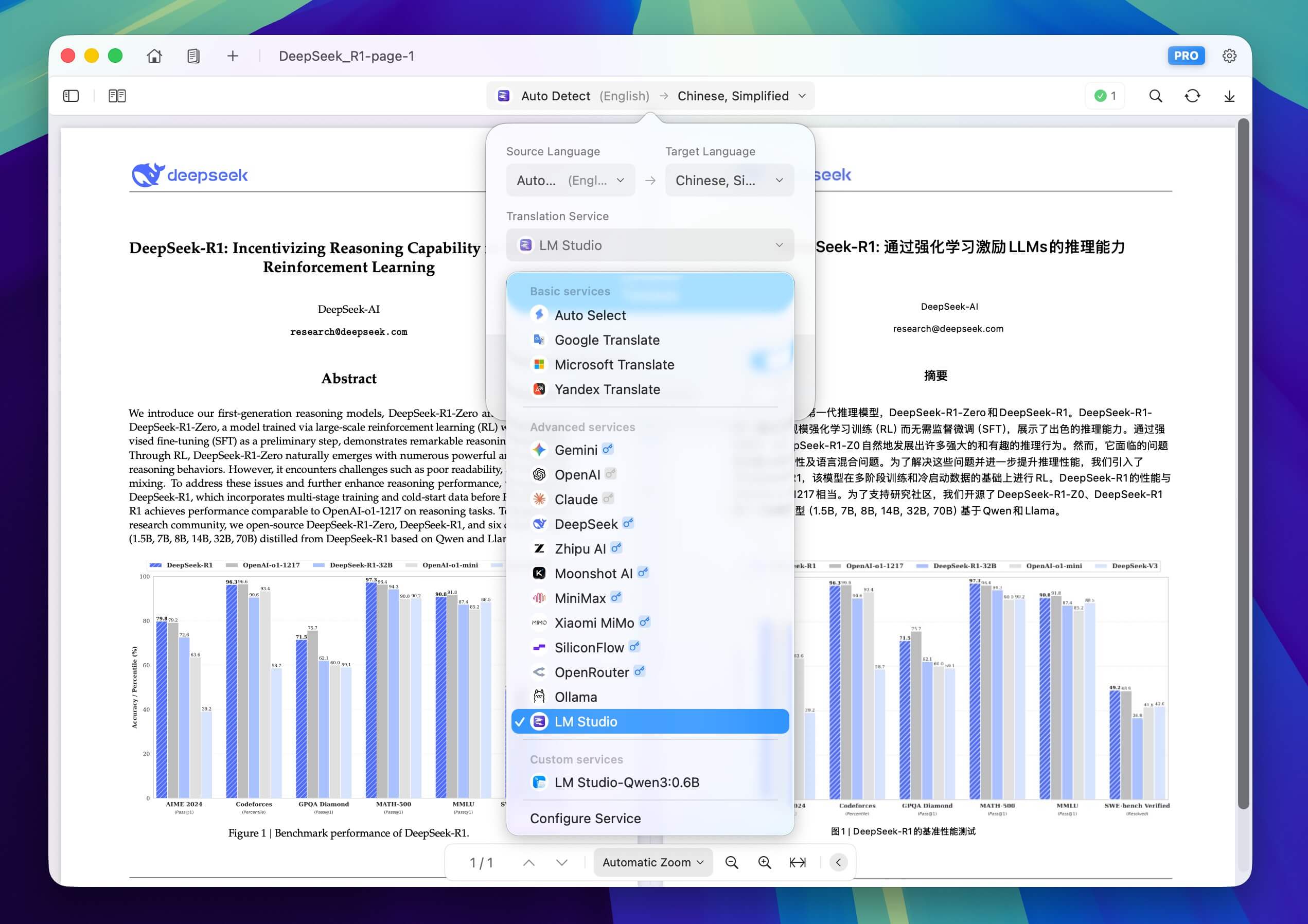
Select the LM Studio service
Pick the LM Studio service you just configured. If you have multiple models set up (say, a fast small model and a stronger large one), this is where you choose which one to use for this particular document.
Import and translate
Open your PDF. Doco Translate will parse the document structure — text blocks, headings, tables, images, footnotes — and send translation requests to your local LM Studio model. The translated text gets placed back into the document view, aligned with the original layout.
Translation speed depends on your Mac's hardware and the model size. A smaller model on an M-series Mac can translate a 10-page document in a couple of minutes. Larger models on the same hardware will be slower but may produce more nuanced translations, especially for technical or domain-specific content.
Review the bilingual output
This step is worth your time. Local models handle everyday text well, but specialized vocabulary — legal terms, medical jargon, product names, abbreviations — can trip up any model. Doco Translate shows you the original and translated text side by side, and you can click on any paragraph to edit the translation directly.
Pay attention to numbers, dates, units, proper nouns, and table headers. These are the spots where small errors cause real problems downstream.
Export
When you are satisfied with the translation, export the document. The exported file preserves the layout structure of the original PDF, so you end up with a usable translated document rather than a wall of unformatted text.
Practical Tips
- Start small. Translate a few pages before committing to a 100-page document. It takes a minute and saves you from discovering quality issues halfway through.
- Keep LM Studio's server tab visible while translating. You can monitor whether the model is processing requests, and you will notice immediately if something stalls.
- Match model size to your hardware. If your Mac starts swapping memory or the fan spins up aggressively, the model is probably too large. Drop down to a smaller or more aggressively quantized version.
- Use high-quality scans. OCR is only as good as the source image. Blurry text, heavy watermarks, and low-resolution scans will hurt translation quality before the language model even gets involved.
- Always keep the original. Treat the translated PDF as a working version. For anything important — contracts, submissions, publications — keep the source file untouched.
When Local Translation Makes Sense (and When It Does Not)
Local PDF translation with LM Studio works best when privacy matters, when you are translating regularly and want a predictable setup, or when you are working with content that should not leave your network.
It is not the right choice for every situation. If you need the highest possible translation quality on a one-off document and the content is not sensitive, a cloud translation service with a larger model may give you a better result with less effort. Similarly, if your Mac has limited RAM, running large models locally might be painfully slow on long documents.
The sweet spot is somewhere in the middle: sensitive or recurring documents where you want a reliable, private, and free translation workflow on your own machine.
FAQ
Does Doco Translate work with LM Studio's local server?
Yes. Configure LM Studio in Settings → Services → Advanced Services → LM Studio, set the API host to your local server address (default is http://localhost:1234), select the loaded model, and click Verify service.
Do I need an API key for LM Studio?
No. A standard LM Studio local server does not require an API key. Leave the API key field empty unless you have configured authentication yourself.
What model should I use for PDF translation?
Multilingual models like Qwen, Gemma, Llama, and Mistral work well. For Macs with 16 GB RAM, 7B–8B parameter models offer a good balance of quality and speed. For 8 GB machines, use 1B–3B models to keep things responsive.
Does the translated PDF keep its formatting?
Doco Translate preserves the document layout — headings, tables, images, multi-column text, and reading order. Some shifts are inevitable when translated text is longer or shorter than the original, but the result is far more usable than copy-pasting text into a generic translator.
Can I translate scanned PDFs this way?
Yes. Doco Translate includes built-in OCR that extracts text from scanned and image-based PDFs. For the best OCR accuracy, use clear scans and manually set the source language.
What if Verify service fails?
Check three things: (1) the LM Studio server is running, (2) the API host in Doco Translate matches the server address, (3) the model name matches what is actually loaded in LM Studio. After fixing the issue, try verifying again.
Wrapping Up
LM Studio and Doco Translate together give you a fully local PDF translation workflow on Mac. LM Studio handles the language model with a clean desktop interface; Doco Translate takes care of the document side — parsing, layout preservation, OCR, bilingual review, and export.
For anyone regularly working with PDFs that should not be uploaded to cloud services — or for anyone who simply prefers to keep their tools local — this setup is worth the ten minutes it takes to configure.
Start Translating for Free
Download Doco Translate and start your document translation journey now.
 Requires macOS 15 or later