How to Translate a PDF with ChatGPT Without Losing Formatting
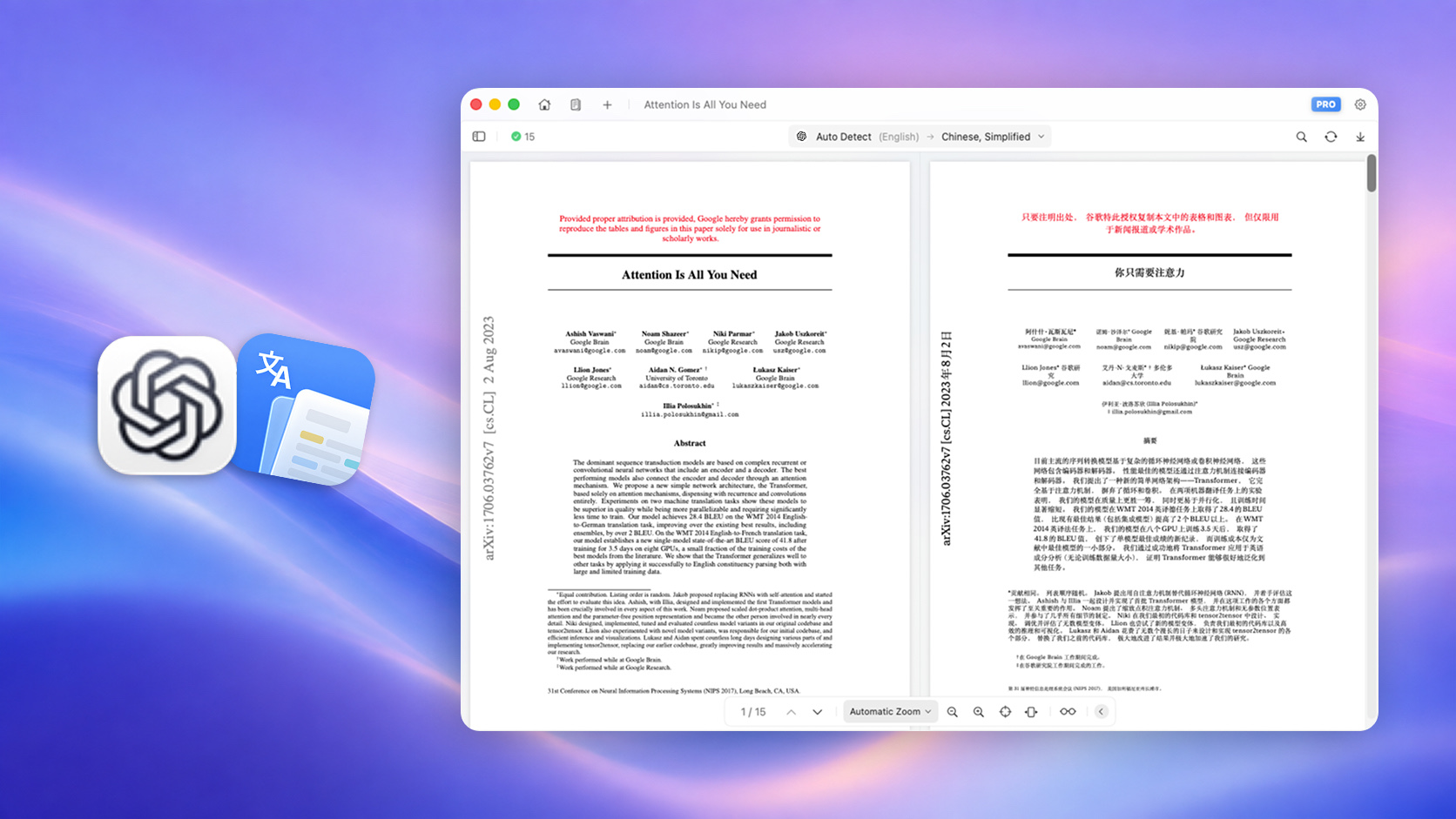
You upload a PDF to ChatGPT, ask for a translation, and get fluent text back. Then you look at the original file. The translated text is no longer beside its tables, captions, or images, and a two-column page has become one long stream of paragraphs.
ChatGPT can translate the language in a PDF. The harder part is producing a translated PDF that still works as a document. If you need to preserve the page layout, the most reliable approach is to let a PDF tool handle parsing, OCR, editing, and export while an AI model handles the translation.
TL;DR
- What: Use ChatGPT for selected PDF content, or connect an OpenAI model to a dedicated PDF translator for a complete document workflow.
- Why: A chat response does not automatically preserve columns, tables, images, page breaks, or text positions.
- How: For short tasks, upload the PDF and give ChatGPT a precise prompt. For a formatted PDF, use Doco Translate to parse the document and place the AI translation back into its layout.
- Result: Keep the page structure, compare source and translation side by side, and export a translated or bilingual PDF.
Can ChatGPT translate a PDF?
Yes. If your ChatGPT account shows a file attachment control, you can attach a PDF and ask ChatGPT to translate it. This works well when you need a chapter, a few pages, or a specific passage rather than a finished translated document.
ChatGPT is useful when the task benefits from a conversation. You can ask it to explain an unfamiliar term, compare two translations, rewrite a paragraph, or summarize a section before translating it in full.
OpenAI also supports PDF file inputs through its API. The API lets another application use an OpenAI model outside a ChatGPT conversation.
How to translate a PDF directly in ChatGPT
1. Attach the PDF
Open a new conversation and use the attachment control to select the PDF. File features and limits can change by account and plan, so check the current options shown in your ChatGPT interface if you do not see an attachment button.
Before uploading a confidential file, remove information the model does not need. Sensitive documents may require approval or a different workflow.
2. Ask for a defined section and output format
Avoid a vague request such as "Translate this PDF." Tell ChatGPT the source language, target language, pages or section, and how you want uncertain terms handled.
For example:
Translate pages 4 through 8 from English to Chinese.
Keep headings, numbered lists, figure captions, table labels, names,
numbers, and units. Do not summarize or omit repeated text.
If a technical term is ambiguous, keep the English term in
parentheses after the Chinese translation.
For a long document, work in sections. Smaller batches are easier to inspect, and you can correct terminology before mistakes spread.
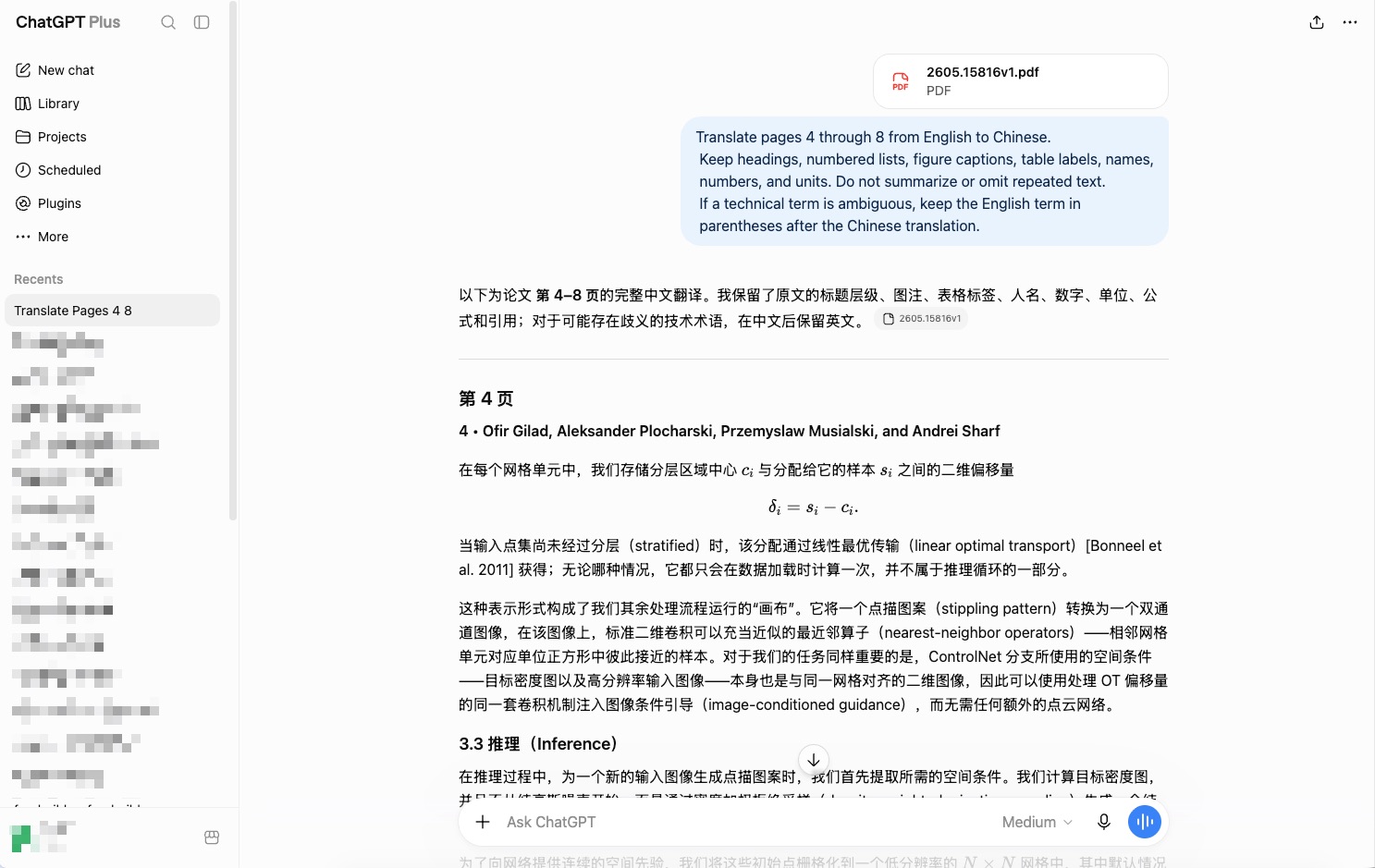
3. Check the translation against the PDF
Ask ChatGPT to identify text it could not read confidently, then compare the output with the source yourself.
Look closely at names, dates, decimal points, units, footnotes, and words that change the strength of a claim. In a legal or research document, a missing "not" or a stronger translation of "may" can change the meaning even when the sentence sounds natural.
4. Move the translation into a document
ChatGPT normally returns the result as conversation content. You can copy it into a document editor, then rebuild the layout manually.
That method is reasonable for a simple report. It becomes slow when the PDF has many pages, positioned text boxes, tables, or illustrations.
Why formatting gets lost
A PDF stores content by page position. What looks like a paragraph may be a collection of separate text objects placed at exact coordinates. Tables may not contain real rows and columns, and a scanned PDF may contain no selectable text at all.
ChatGPT focuses on understanding and generating content. A chat response does not carry the original PDF's layout model with it. Even if the response uses headings and Markdown tables, that is a reconstruction of the content, not the original page.
The gap appears quickly in complex files. A two-column paper can be extracted in the wrong reading order, while a scanned page needs OCR before translation can begin. Text inside graphics may be missed, and longer translations can overflow the original text boxes. Table cells, footnotes, and captions can also lose their visual relationships.
This does not mean the translation is useless. It means language translation and PDF reconstruction are separate jobs.
A better workflow for a formatted translated PDF
Doco Translate handles the PDF side of the work on Mac and iPhone. It parses pages on the device, identifies the reading order, runs OCR when needed, and displays the translation in the original page structure. You can use an OpenAI model as the translation service through the OpenAI API.
ChatGPT and the OpenAI API are different products. You do not connect Doco by signing in to ChatGPT. Create an API key on the OpenAI platform, add it to Doco, and select an available model. API usage is billed through your API account. OpenAI's developer quickstart covers key creation and billing setup.
1. Connect OpenAI in Doco Translate
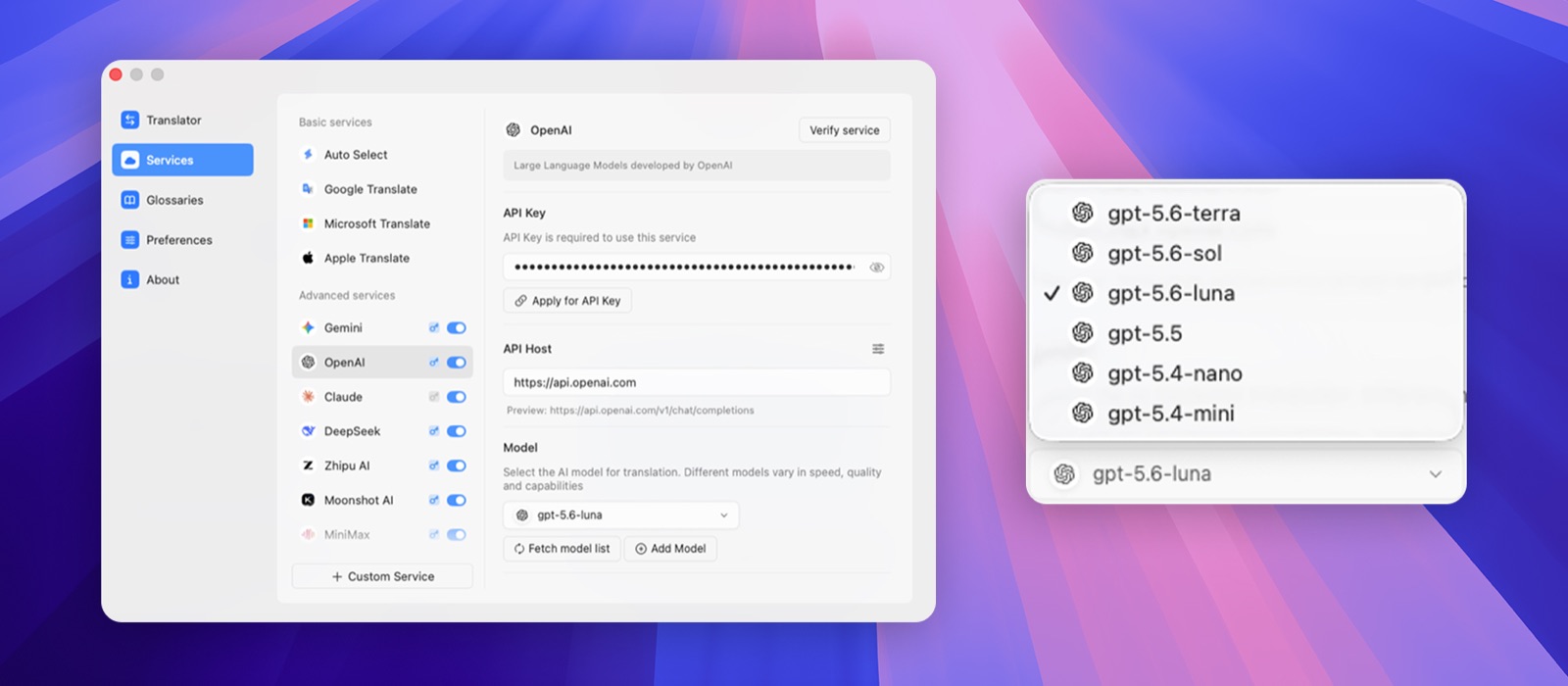
Open Settings > Services > Advanced Services > OpenAI and enter your API key. Fetch the model list, choose an available model, then verify the service.
Model availability changes, so avoid copying an old model name from a tutorial. Doco can fetch the current list from the provider. The AI service setup guide explains the same workflow for all supported API providers.
If you use an OpenAI-compatible provider rather than OpenAI itself, add it as a custom translation service and check that provider's endpoint, authentication, and data policy.
2. Choose languages and open the PDF
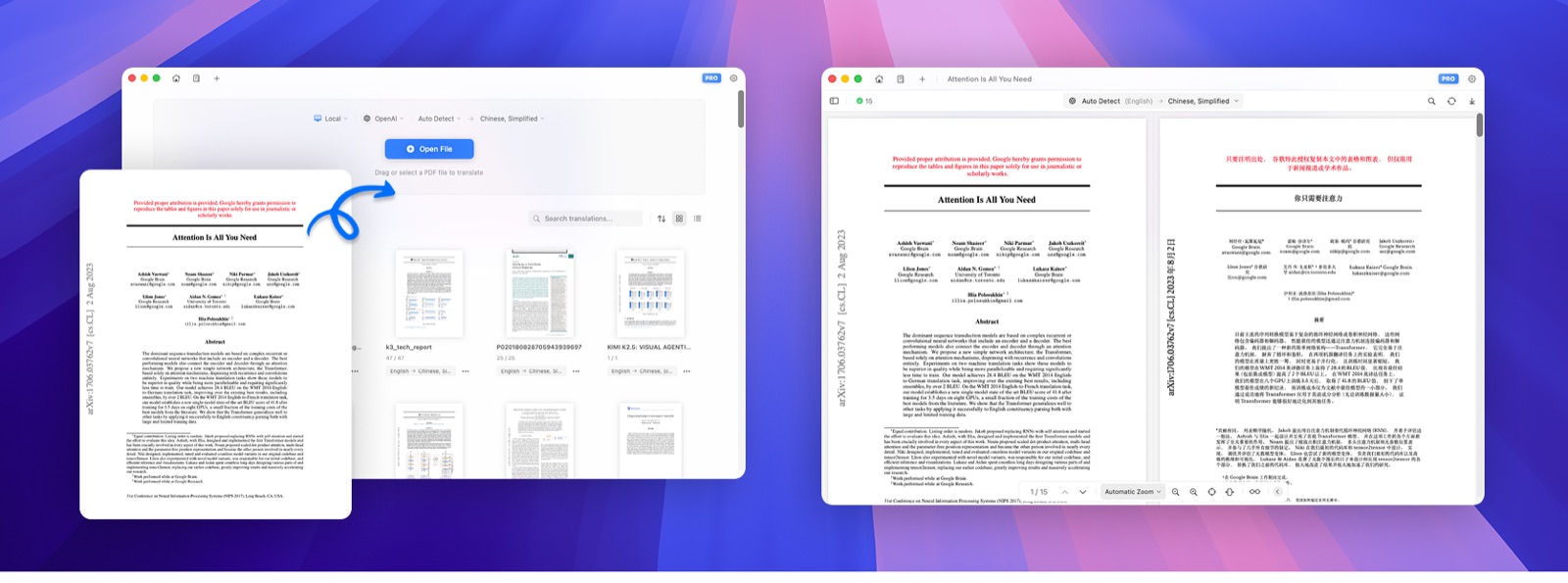
On the Doco home screen, select OpenAI as the translation service, then choose the source and target languages. Automatic source detection is convenient for a normal digital PDF. Choose the source language manually for scans or mixed-language pages because OCR has less room to guess.
Open a local PDF or paste a direct PDF URL. Doco parses the file on your device and sends the text needed for translation to the selected service. The original PDF itself does not need to be uploaded as a document to ChatGPT.
3. Review the bilingual result
Doco places the original page on the left and the translated page on the right. Both sides scroll and zoom together, and matching paragraphs can be highlighted. You can check a suspicious sentence without searching through a chat transcript.
If one paragraph needs work, edit it directly or retranslate it with another configured service. You can also resize or move a translated text box when the target language needs more space. See the editing guide for the available text and layout controls.
4. Export a translated or bilingual PDF
When the review is complete, export a translation-only or bilingual PDF. The bilingual version alternates each source page with its translation for easier review.
Exported PDFs contain selectable text rather than flat page images. Doco aims to preserve the source structure, but no translation can promise a pixel-for-pixel match for every page. Text expands and contracts across languages, and dense tables or tightly designed pages may still need adjustment.
Privacy and sensitive PDFs
A direct ChatGPT upload sends the file to a cloud service. In the Doco and OpenAI API workflow, Doco parses the PDF locally, but sends the text required for translation to OpenAI.
OpenAI states that API data is not used to train its models unless the customer opts in. Its API data controls documentation also explains retention, stored application state, and controls available to eligible organizations. Review the current policy for the endpoint and account you use.
Local PDF parsing is not the same as fully local translation. If a document must not be sent to a cloud model, use Apple Translate or a local model through Ollama, LM Studio, or oMLX instead. For regulated, legal, medical, or highly confidential material, follow your organization's rules and get approval before sending any content to an external service.
Frequently asked questions
Can ChatGPT translate an entire PDF?
It can work with PDF content, but a very long document is easier to control in sections. Review each section for missing content and consistent terminology. If you need a complete formatted output file, use a PDF translation workflow rather than relying on one chat response.
Can ChatGPT translate a scanned PDF?
It may be able to read visible text from scanned pages, but the result depends on image clarity and the file workflow available in your account. A dedicated OCR step gives you more control. Doco includes OCR and lets you set the source language before recognition.
Will ChatGPT preserve tables and images?
It can translate text from tables and images when that content is readable, but the chat output is not a reliable copy of the original page layout. Check cell order, labels, captions, and text embedded in graphics.
Can ChatGPT return a translated PDF with the same formatting?
Do not assume the output will match the original PDF. ChatGPT can help translate and restructure content, while a dedicated PDF tool is better suited to rebuilding pages, handling overflow, and exporting the result.
Is an OpenAI API key included with ChatGPT?
No. The API uses its own account setup, API keys, usage controls, and billing. Connect Doco with an API key created on the OpenAI platform, not with your ChatGPT login.
Is this workflow fully offline?
Not when you use ChatGPT or the OpenAI API. Doco parses the PDF on your device, but the necessary text is sent to OpenAI for translation. Choose a local translation service if the entire workflow must stay on your device.
Keep the translation attached to the document
Use ChatGPT when you want to translate, question, or refine a manageable part of a PDF. Use a dedicated PDF workflow when the translated file needs to keep its columns, tables, images, and page structure.
Download Doco Translate, connect your preferred AI service, and review the translation beside the source before exporting the final PDF.
무료 번역 시작
Doco Translate를 다운로드하고 지금 문서 번역 여정을 시작하세요.