
Edit Translation
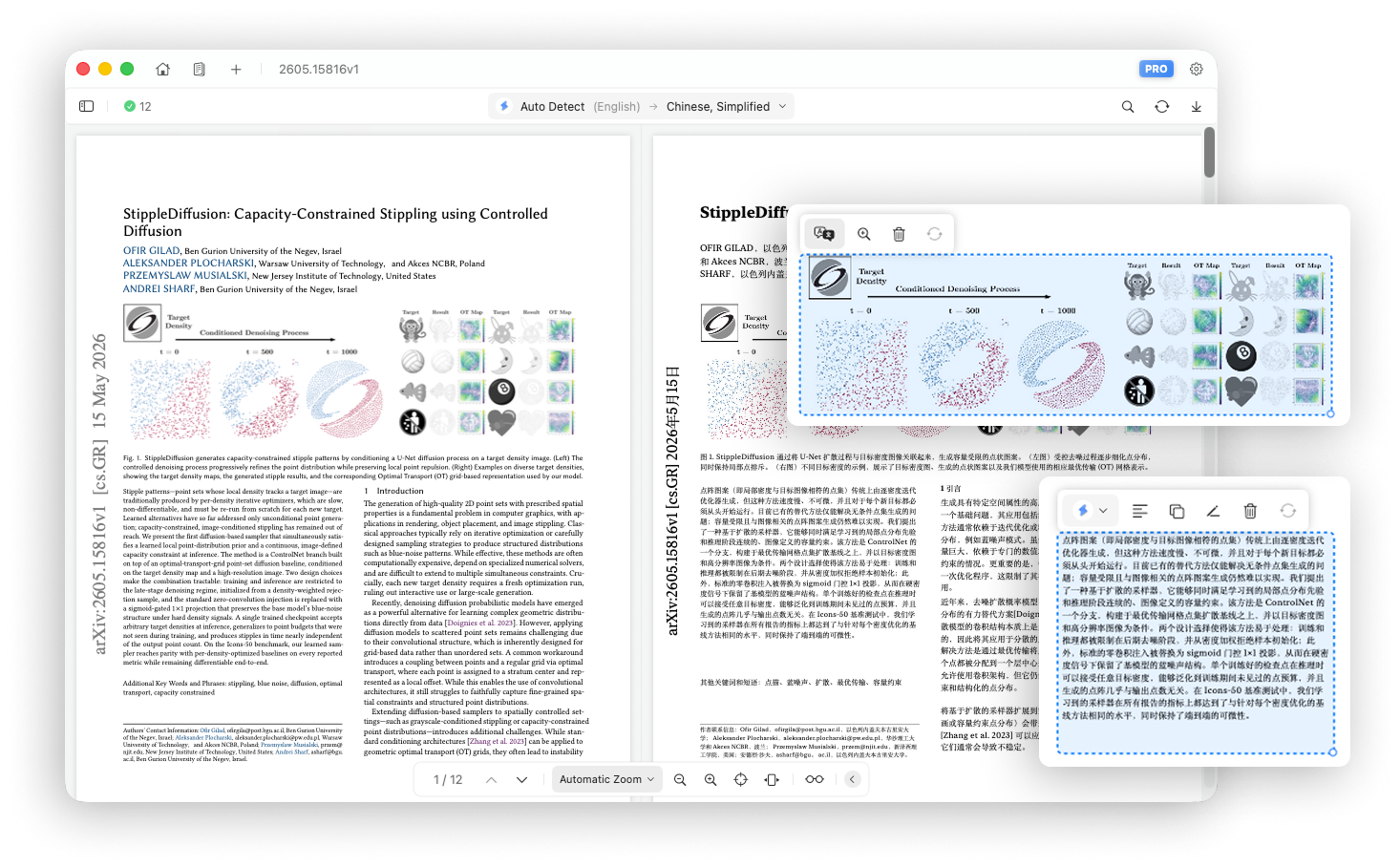
After a PDF page has been translated, you can edit objects directly in the translated area to refine the content and layout.
Click a paragraph or image in the translated area to select and edit it.
1. Editing Text Paragraphs
Selecting a text paragraph opens a toolbar at the top with the following actions.
Translate with a Different Service
If the result is unsatisfactory, open the translation service menu and choose another engine to retranslate that paragraph.
Alignment
Change the paragraph alignment to left, center, or right.
Copy Text
Copy the translated paragraph to the clipboard.
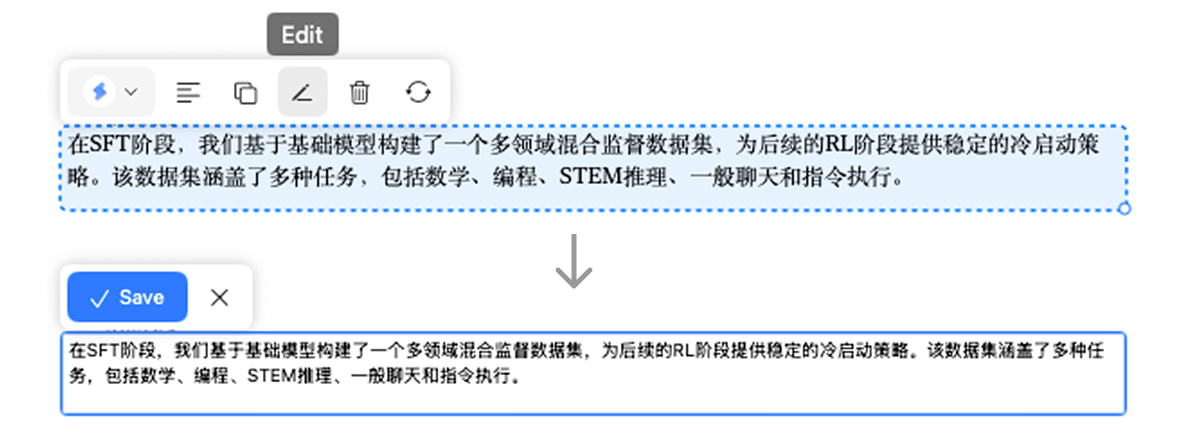
Edit Text
Click Edit to enter text-editing mode and manually revise the translation.
Delete
Delete a translated paragraph when the result contains redundant content.
Reset Position and Size
Click Reset to restore the paragraph container's original width, height, and coordinates.
Move
With the paragraph selected, drag from its edge to move it to a suitable position.
Resize
With the paragraph selected, drag the resize control in the lower-right corner to change the container's width and height.
2. Editing Images
Selecting an image opens a toolbar at the top with the following actions.
Translate
Click Translate to switch the image between these states:
- Translated image
- Original image
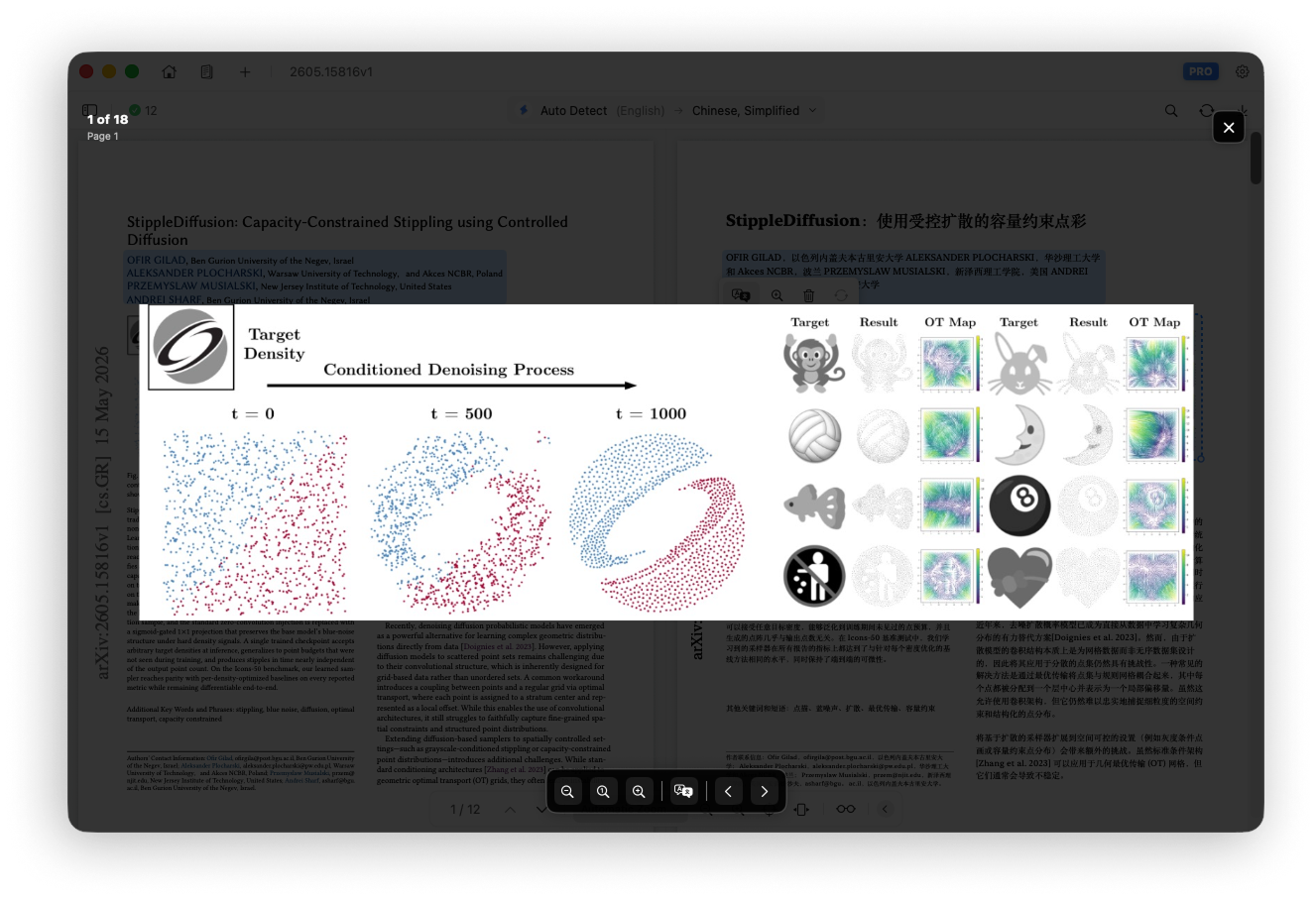
View Image
Click the zoom button to open the full-screen image viewer and inspect image details.
Delete
Delete a translated image when it is redundant.
Reset Position and Size
Click Reset to restore the image's original width, height, and coordinates.
Move
With the image selected, drag it to a suitable position.
Resize
With the image selected, drag the resize control in the lower-right corner to change its width and height.