
Quickstart
This guide explains how to quickly translate a PDF document with Doco Translate.
1. Choose Translation Settings
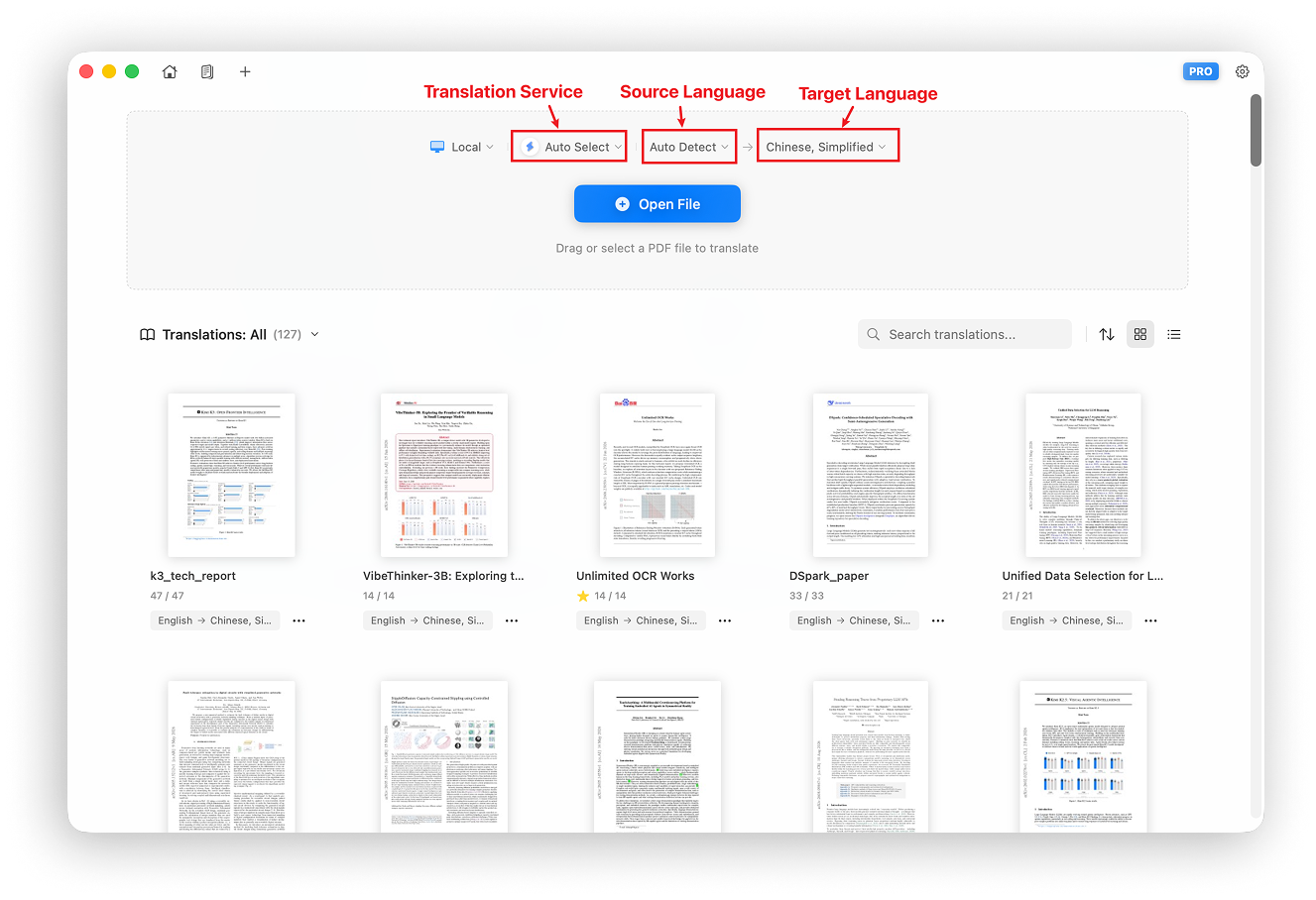
Open Doco Translate to enter the home screen. The translation options bar appears above the file picker, where you can configure the global translation service, source language, and target language.
Translation Service
The default translation service is Auto Select. It prioritizes availability, then chooses the basic service best suited to your current network environment.
We recommend Auto Select for quick translation tasks.
For higher-quality results, choose an advanced AI translation service. Advanced services require you to configure either an API key (AI Services (API Key)) or a local environment (AI Services (Local)).
Source Language
The default source language is Auto Detect, which is recommended for most documents.
Choose the source language manually in these situations:
- The source language was detected incorrectly and you need to translate again.
- The PDF is scanned and specifying the language will improve OCR accuracy.
Target Language
The system language is used as the default target language. You can choose a different target language as needed. Doco Translate supports translation across more than 100 languages.
2. Import a PDF
Doco Translate supports two ways to import PDFs: local files and online links.
Import a Local PDF
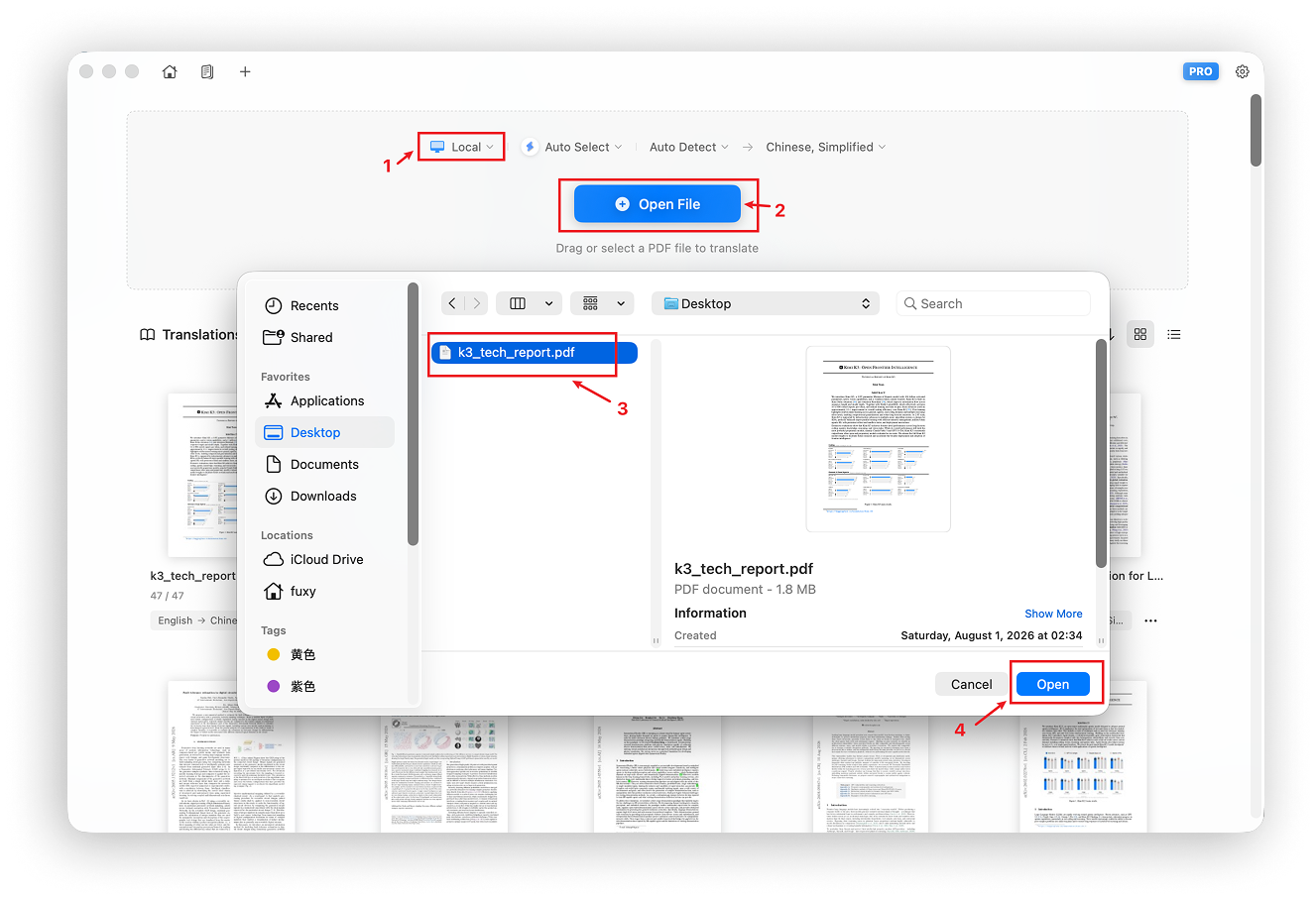
Click Open File and choose the PDF you want to translate in the file picker.
Import a PDF from an Online Link
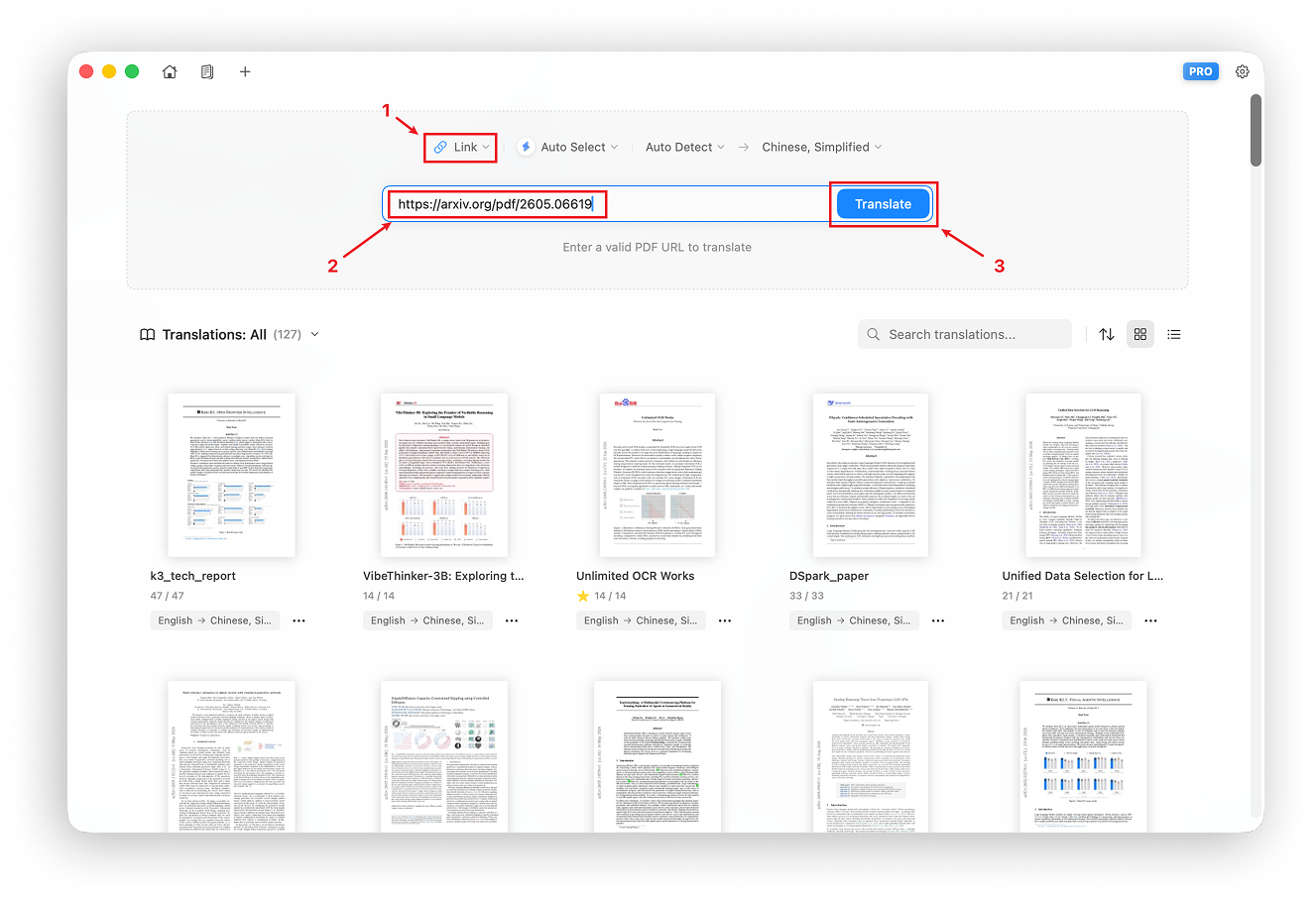
Change the import type above the file picker from Local to Link. Enter or paste the URL of an online PDF, such as https://arxiv.org/pdf/2605.06619, then click Translate.
3. Translate
After you select a file, Doco Translate automatically opens the translator and begins translating. The process has three stages:
- Parse the document
- Send translation requests
- Display the translated result
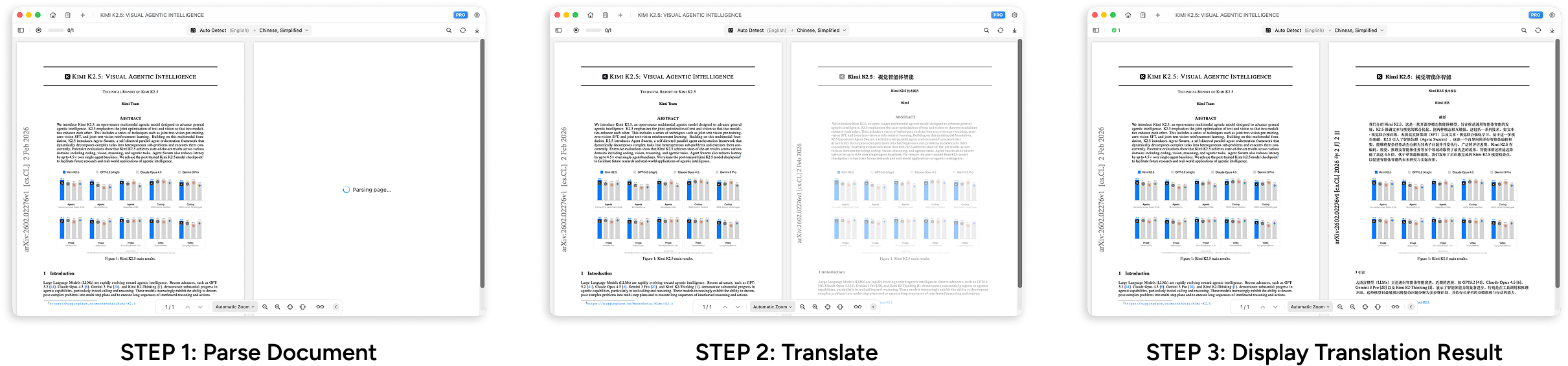
Translation happens progressively, so you do not need to wait for the entire document to finish. You can read while Doco Translate continues translating, even with very large documents.
These steps complete the basic PDF translation workflow. More advanced tasks, including editing translations and exporting translations, are covered in later chapters.