
Translator Overview
The translator is the core of Doco Translate. PDF translation, reading, editing, and exporting all take place here.
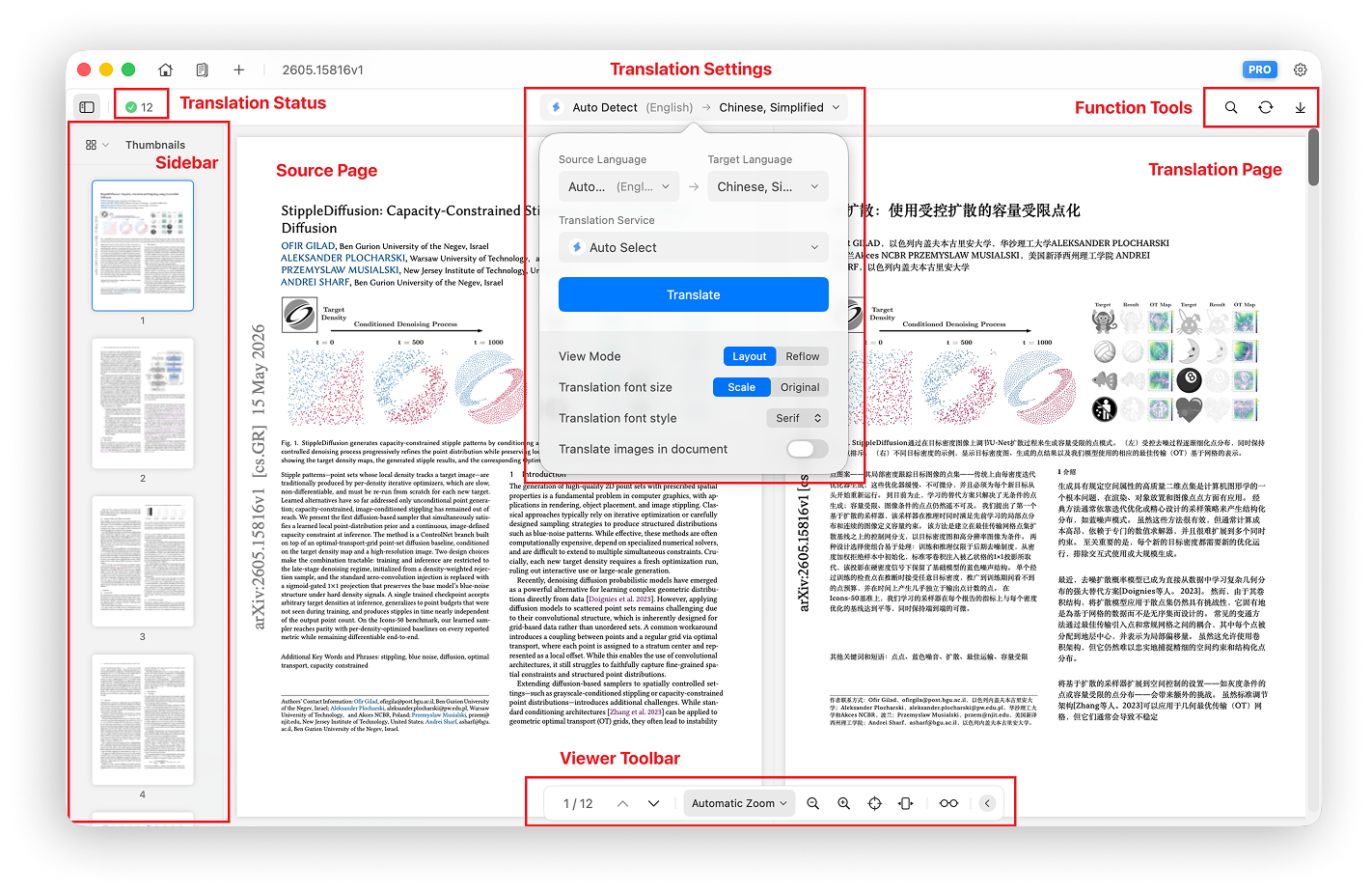
The translator consists of six main areas:
| Area | Position | Purpose |
|---|---|---|
| Sidebar | Left | Document thumbnails and outline |
| Status panel | Top left | Translation progress, completed pages, and failed pages |
| Translation settings panel | Top center | Translation options and controls |
| Action buttons | Top right | Search, reparse, and export |
| Document viewer | Center | Original and translated pages |
| Bottom toolbar | Bottom | Page, zoom, view, and original-text controls |
1. Sidebar
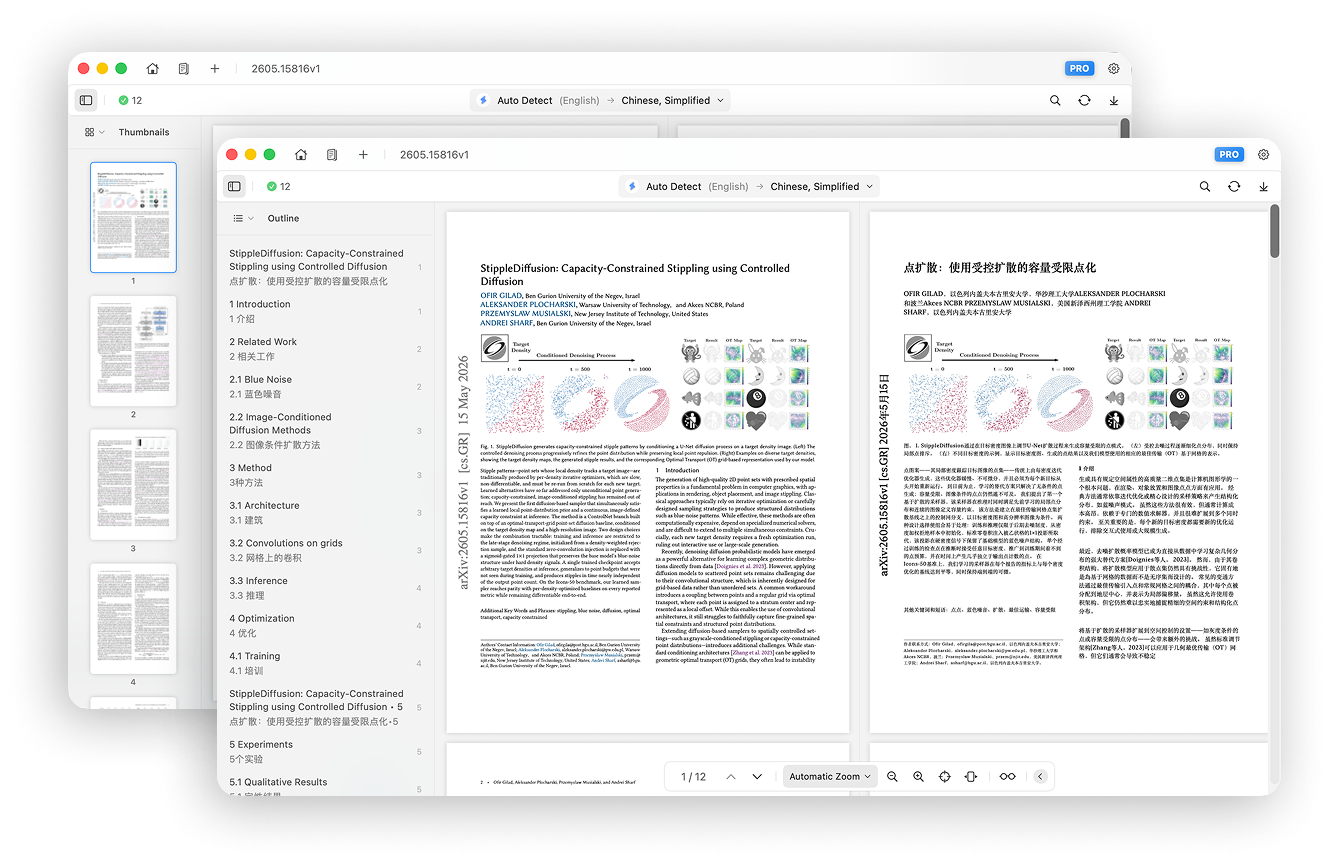
The sidebar is on the left side of the translator and supports both Thumbnail View and Outline View.
- Thumbnail View provides an overview of every page and lets you jump to a page.
- Outline View displays the document structure and lets you jump to a heading.
2. Status Panel
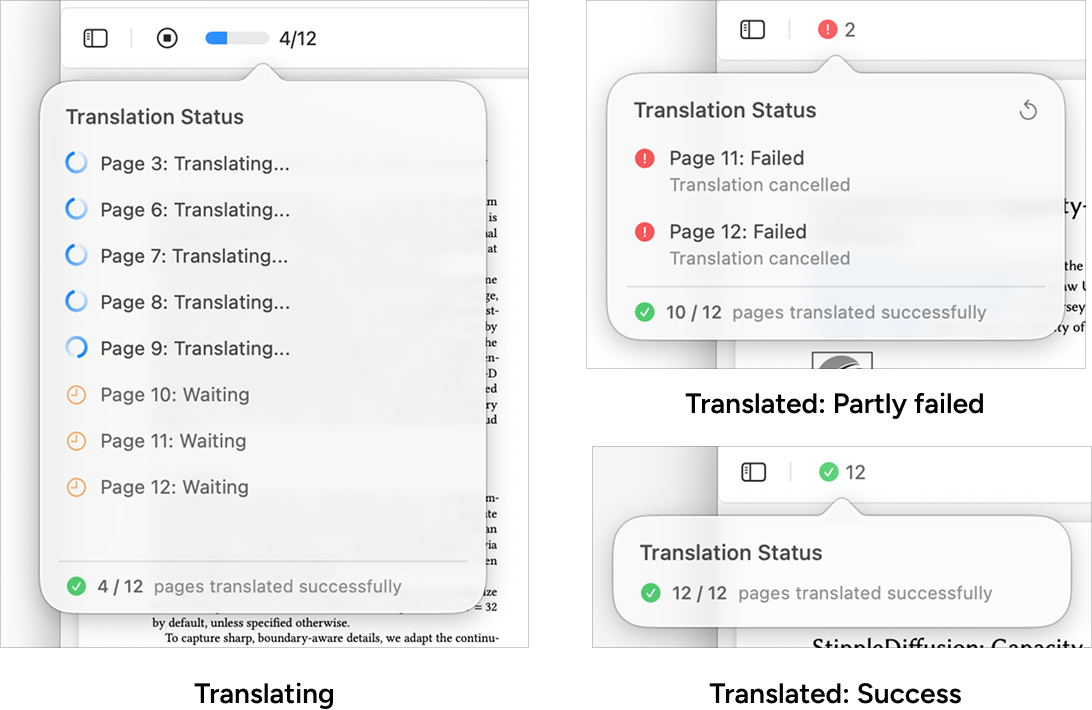
The status panel button is in the upper-left corner and displays the document's current translation status.
- While translating, it shows progress and lets you stop the translation.
- When translation finishes, it shows the number of successful and failed pages.
3. Translation Settings Panel
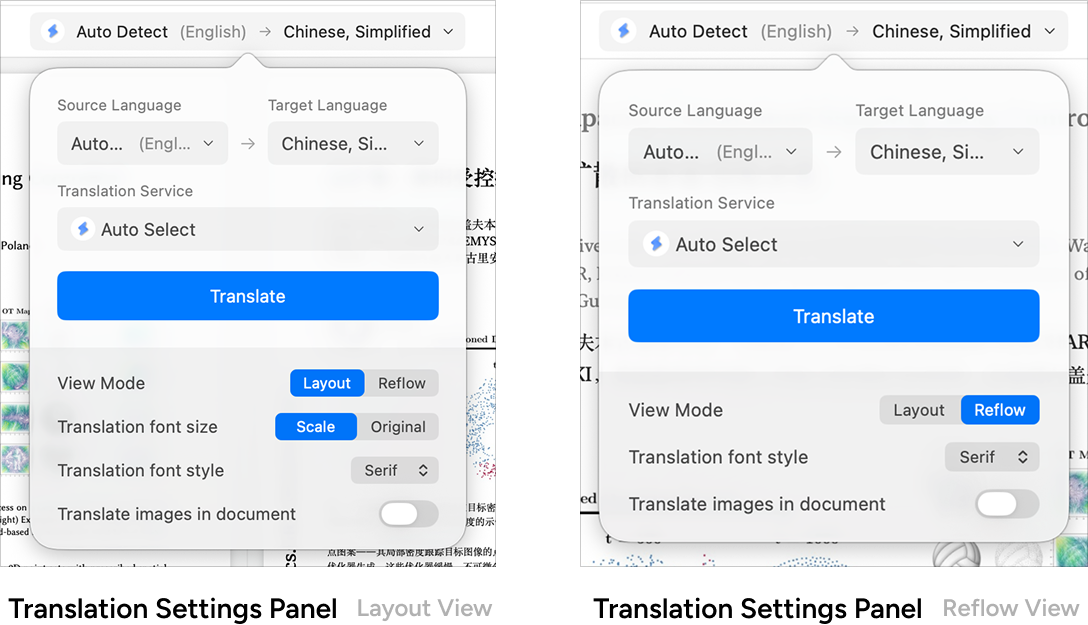
The translation settings panel is in the upper center of the translator. It controls the main translation options and several display options.
Core Translation Settings
The core settings in the white upper area apply only to the current translation record. Click Translate to apply them.
- Source language: the language of the original document; Auto Detect is recommended
- Target language: the language of the translated document
- Translation service: the translation engine to use
Other Translation Settings
The optional settings in the light-gray lower area apply globally. Changes also apply when you open other translation records.
- View mode: switch between Preserve Layout and Reflow
- Translation font size: choose Auto Scale or Original Size in layout view
- Font style: serif, sans serif, monospaced, or rounded
- Translate images: automatically translate all images in the document
4. Action Buttons
The action buttons in the upper-right corner provide search, reparse, and export functions.
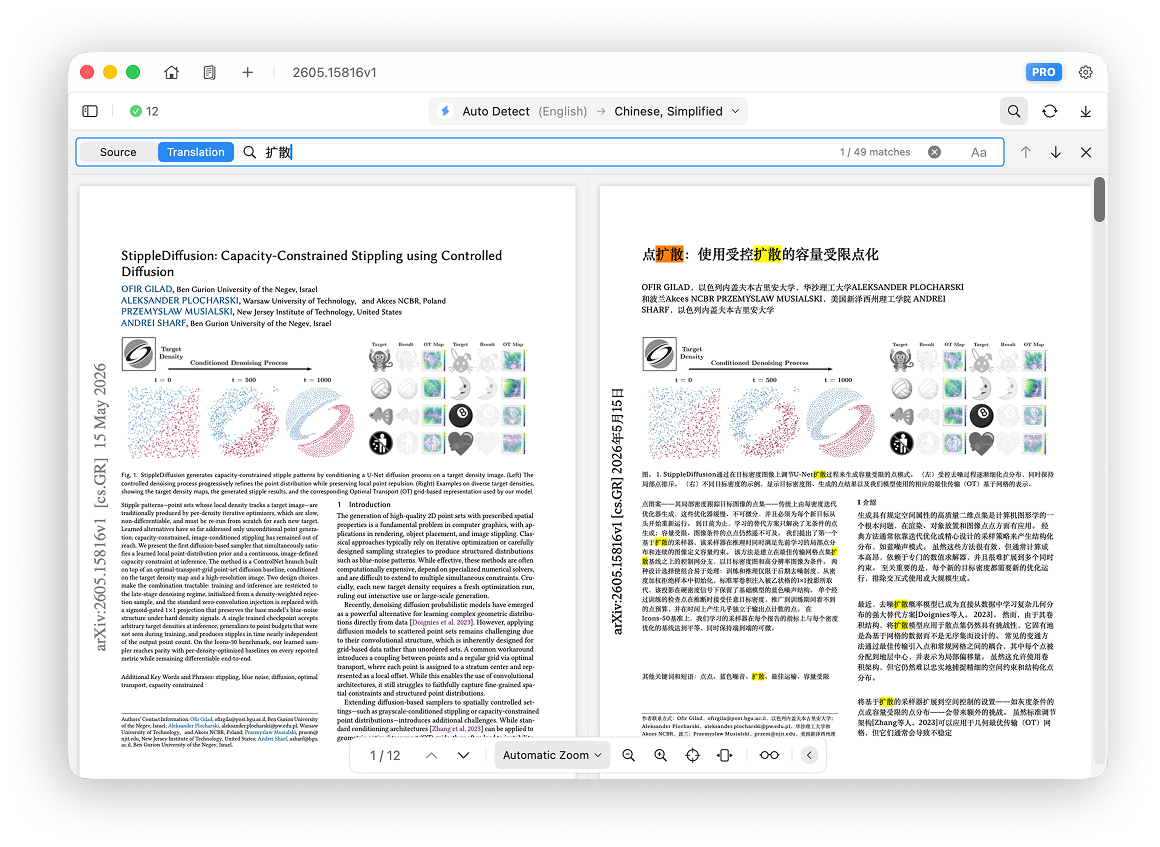
Search
Open or close the search bar and search either the original text or the translation.
Reload
Reload reparses and retranslates the document.
When should you reload a document?
Scenario 1: If editing has made the translated content or layout unsatisfactory, reload the document to restore its initial content and layout.
Scenario 2: Doco Translate continuously improves its parser through app updates. After an important parser update, reload an older translation record to parse it again with the latest version. Follow the app changelog for relevant updates.
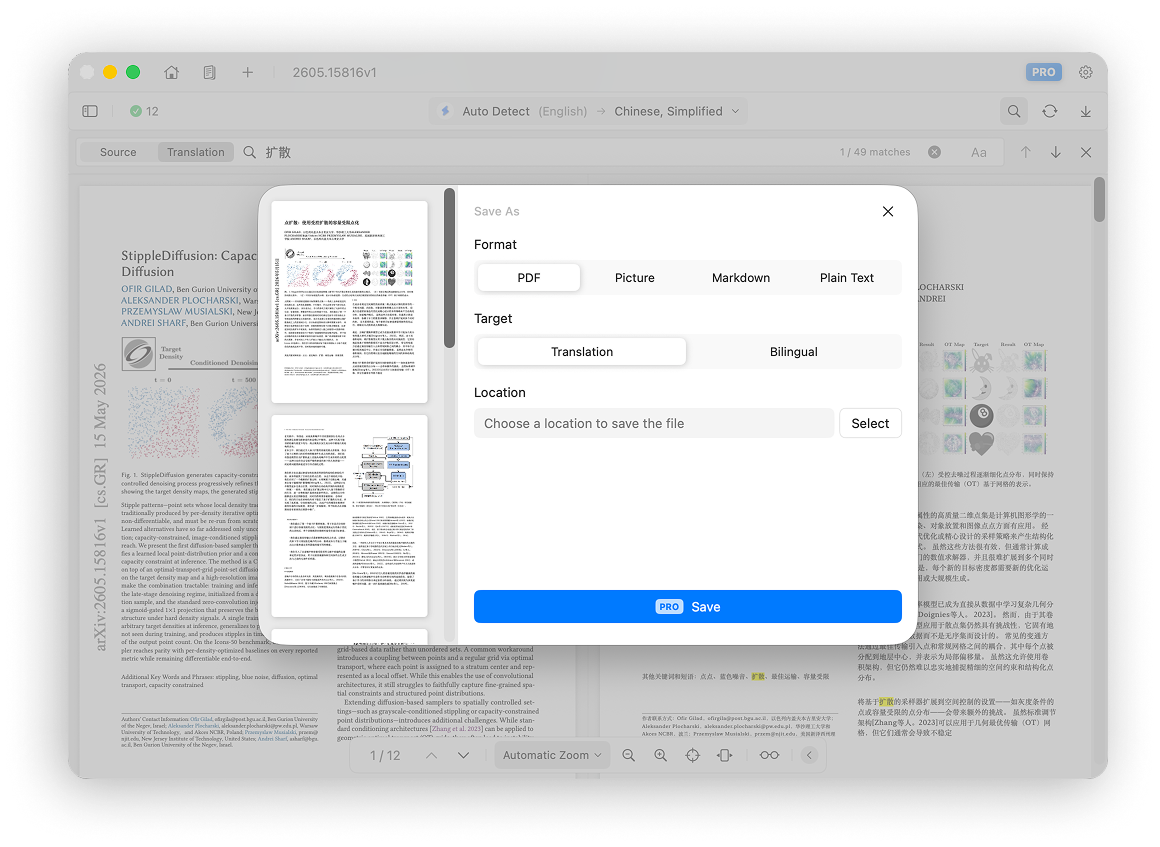
Export Translation
Export the result as PDF, image, Markdown, or plain text, in either translation-only or bilingual mode. Exporting is a Pro feature. See Export Translation for details.
5. Document Viewer
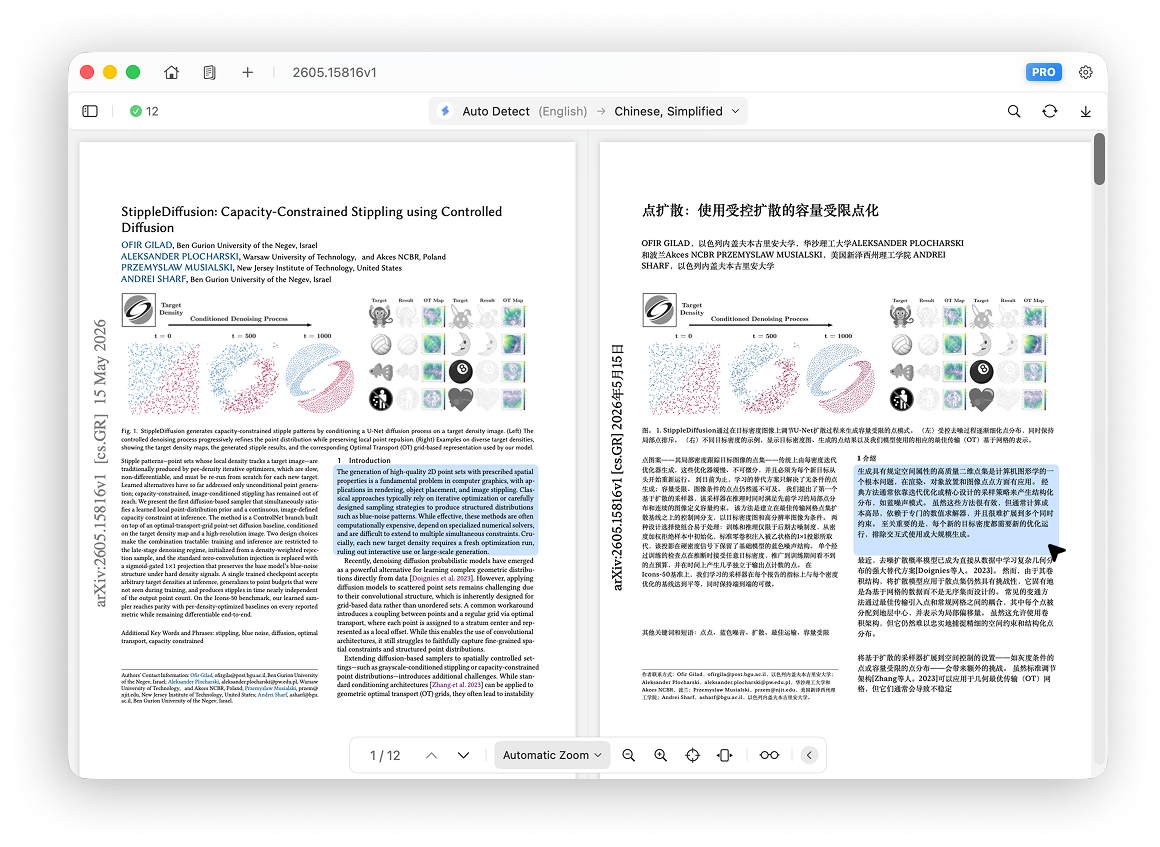
In layout view, the document viewer is split into two areas: the original on the left and the translation on the right.
Scrolling and zooming remain synchronized for comfortable bilingual reading.
When you point to a paragraph or image, its corresponding object is highlighted in both the original and translated pages.
Switch to Reflow View to render the document as a natural top-to-bottom flow. See Reflow Mode for details.
6. Bottom Toolbar
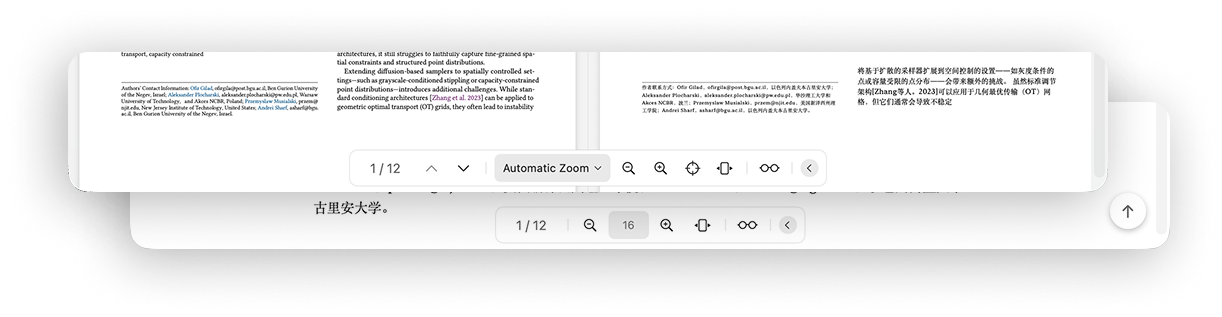
The bottom toolbar contains the main viewing controls.
Page Controls
- Show the current page and total page count
- Go to the previous page
- Go to the next page
Zoom Controls (Layout View)
- Auto Scale: fit the window width, up to 125% of the document's actual width
- Actual Size: render at the document's real dimensions
- Fit Width: fill the available window width
- Zoom In: increase zoom by 10%
- Zoom Out: decrease zoom by 10%
- Set a specific zoom level, such as 100% or 150%
- Focus Content: remove the blank margins on both sides and scale the central content to fill the available width
Font Size Controls (Reflow View)
- Show the current base font size, which defaults to 16
- Increase the base font size by 1
- Decrease the base font size by 1
Bilingual View Toggle
- Switch between Bilingual and Translation Only